
TL;DR
- The official starting point for a YouTube ad library search is Google Ads Transparency Center, Google's searchable ad repository across services including YouTube.
- Search by advertiser name or website. Check the entity you select, then use the available date, location, platform and format controls to define your research set.
- Video format alone does not prove YouTube placement. Keep the platform evidence shown for each reference and mark missing details unknown.
- Compare creative choices under consistent conditions. An ad record does not establish the competitor's conversions or return on ad spend.
- Retain the ad-record URL and any accessible underlying video URL separately. MyAdLibrary's YouTube Ad Downloader uses supported YouTube video links, not Google transparency pages.
YouTube's official ad-discovery source sits within Google Ads Transparency Center. Start there when your question is what an advertiser has shown through Google's advertising services. Start with the brand's channel when your question is what it has publicly uploaded. Those collections can overlap, but they are not interchangeable.
This YouTube ad library guide shows how to build a small competitor reference set that you can explain: advertiser identity, search scope, selected creative and a visible choice worth testing.
What is the YouTube ad library?
Google describes Ads Transparency Center as a searchable repository of advertisers and the ads they have served across services such as Search, Display, Gmail and YouTube. Its current ads transparency policy explains advertiser/website searches and filters such as date and targeted location.
That policy includes advertisers who are verified and those who have not completed verification. Do not assume every displayed entity is verified; read the information attached to the particular record.
There are three related places a researcher might use:
| Source | Main job | Useful reference |
|---|---|---|
| Ads Transparency Center | Search advertisers and inspect available ad records | Advertiser identity, record URL and research scope |
| A disclosure on an ad you encounter | Learn about the advertiser behind that ad | The disclosed entity and an identified ad |
| YouTube channel or video page | Watch accessible published content | The underlying video URL and creative version |
Google's YouTube disclosure is accessible through an info or three-dot icon, as described in its policy. It helps identify an advertiser; it is not a guaranteed export control or a complete history of what you personally watched.
Step 1: search the business or website
Open Google Ads Transparency Center. Search the advertiser name or website domain, then inspect the matching identity. A familiar product name may differ from the legal or payer name shown in a disclosure.
Use the domain as another identifying clue when a name produces several similar results. Compare the advertiser's information with the business you intend to research before attributing its creatives to a competitor.
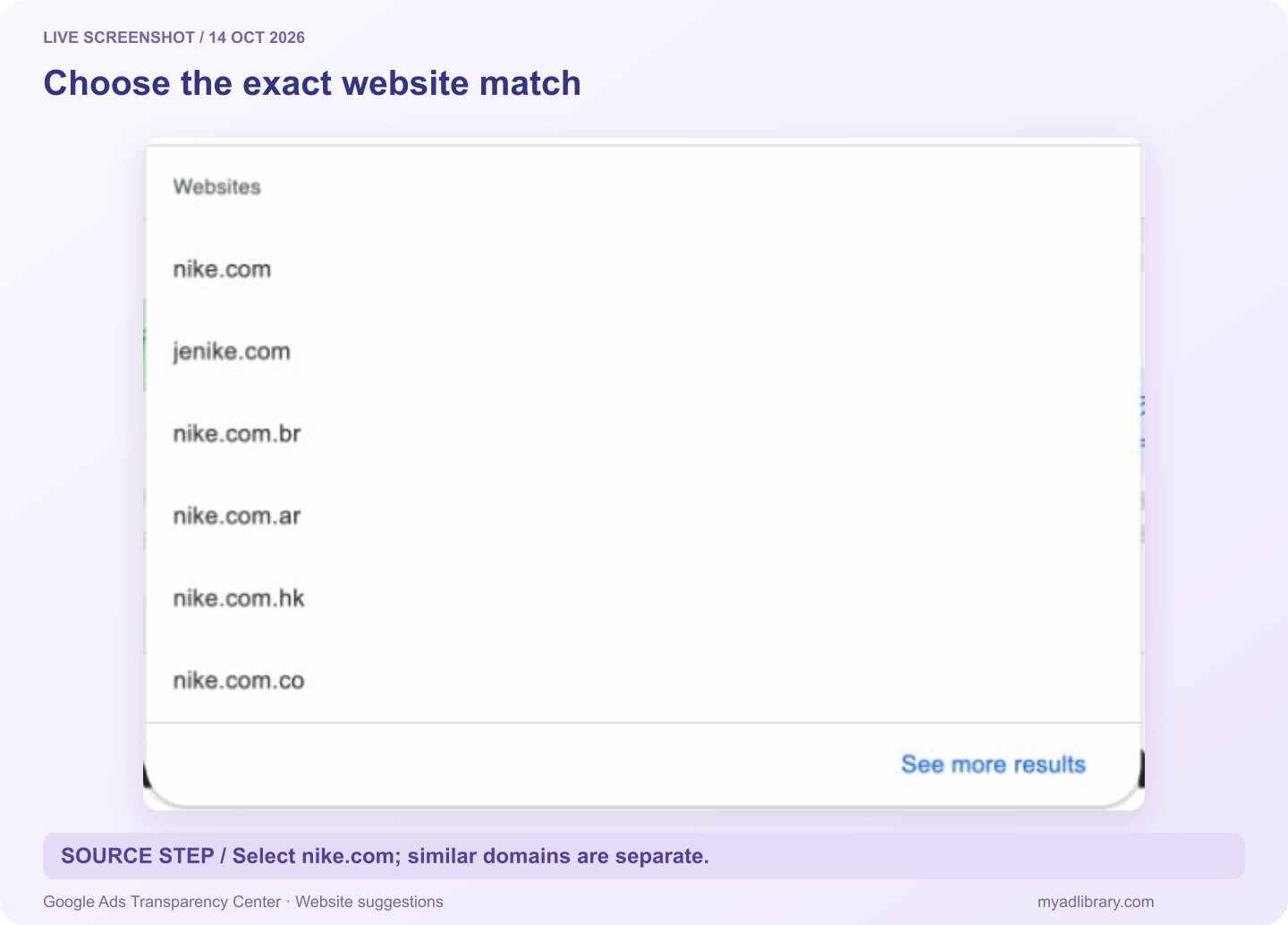
Cropped live website suggestions captured October 14, 2026. We selected nike.com for this example. Similar-looking suggestions are separate destinations and should not be combined automatically.
For an ad you have just encountered on YouTube, inspect the advertiser disclosure if it is available. Record the name shown there and use it as the starting point for the search. This is more specific than trying to reconstruct an advertiser from the color of an ad's background.
Do not assume that a missing familiar name means the business has no advertising. The identity used in the search and the selected location affect the results you can inspect.
Step 2: set a consistent research scope
Choose the market and time period relevant to your brief. Then narrow to YouTube and video using the platform and format controls available in the current interface. Controls and labels can change; rely on the selected settings and the individual record's information.
If a view offers only a video filter, record that limitation. Video creatives can serve on more than one Google surface, so “video” should not silently become “YouTube only” in your report.
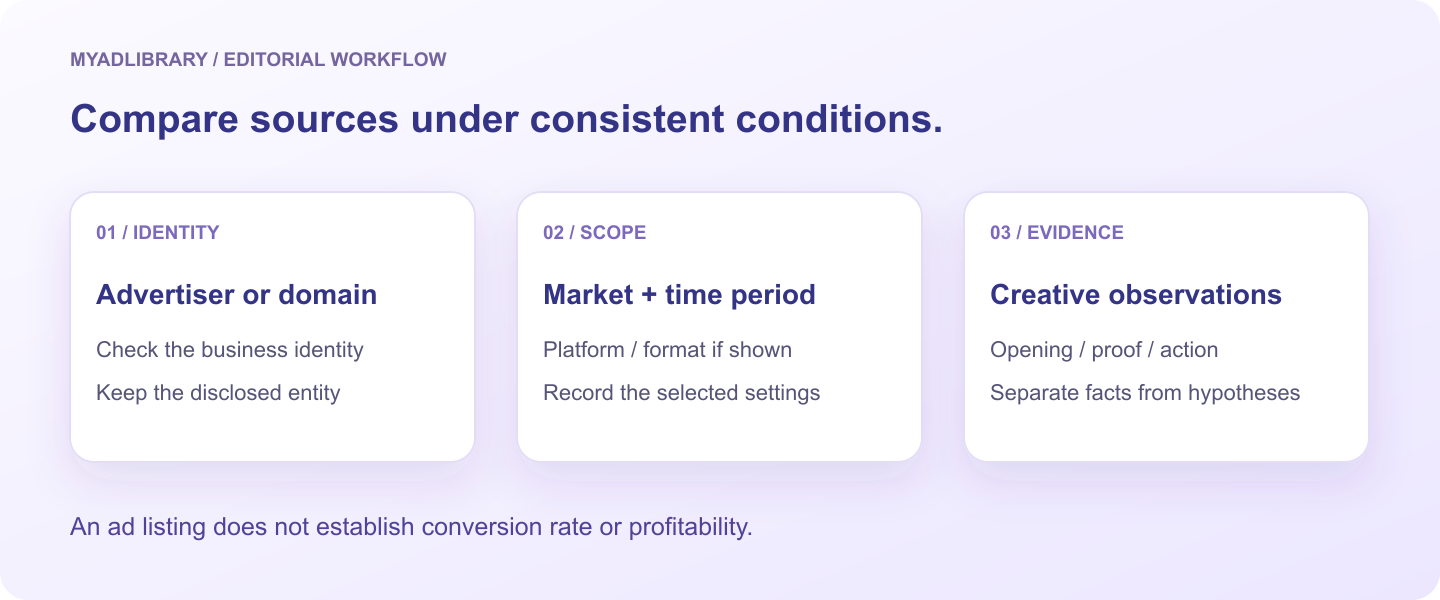
Use the same scope across competitors, and keep platform details attached to each example.
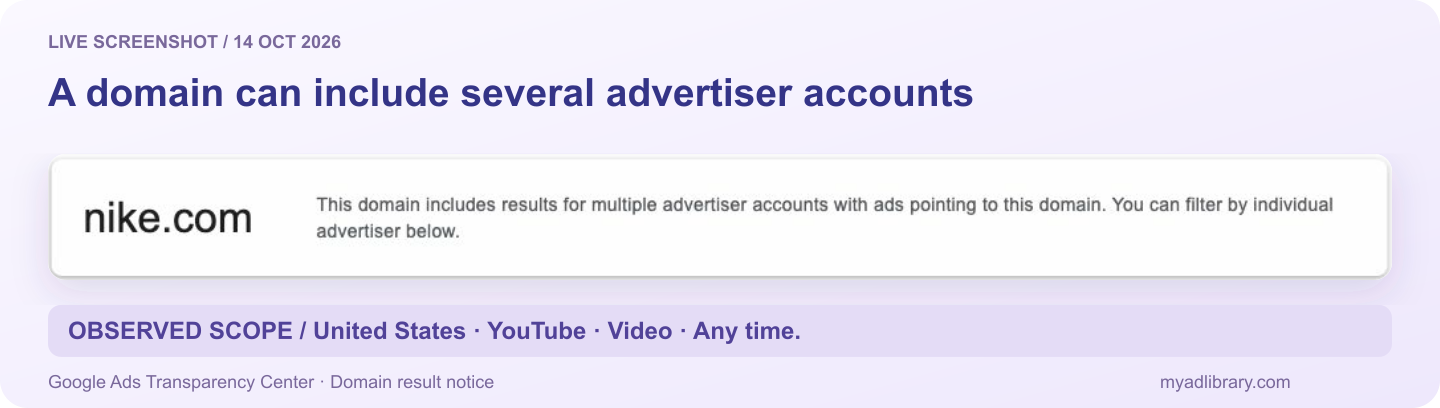
Our observed settings were United States, YouTube, Video and Any time. Google's domain notice explains that several advertiser accounts can point to one website. Record the individual entity as well as the domain; this screenshot is an excerpt of the real notice, not a generated results screen.
Write down the settings before collecting references:
- Advertiser or website searched.
- Country or targeted location selected.
- Date window used.
- Platform and format filters, if available.
- Date you captured the research.
For example, a comparison could use one selected market and a shared recent period for three advertisers. This defines an editorial research exercise. It does not establish that the records represent the entire market or that each advertiser spent a comparable amount.
Step 3: select distinct video creatives
Open an individual record and inspect its preview. Choose examples that help answer one creative question, such as how brands introduce a product demonstration or explain a subscription offer.
Start with a small set, such as three different creatives per advertiser. This is a recommended way to keep analysis manageable, not a statistical sampling rule. Add more only when they provide a meaningful contrast.
Check whether similar records use the same footage with a different opening, offer or language. Your purpose determines whether they should be counted separately. A message comparison benefits from different offers; a visual-composition comparison may need fewer versions of the same footage.
Record the individual ad URL before moving on. A screenshot or an unnamed file can become difficult to reconnect with an advertiser later.
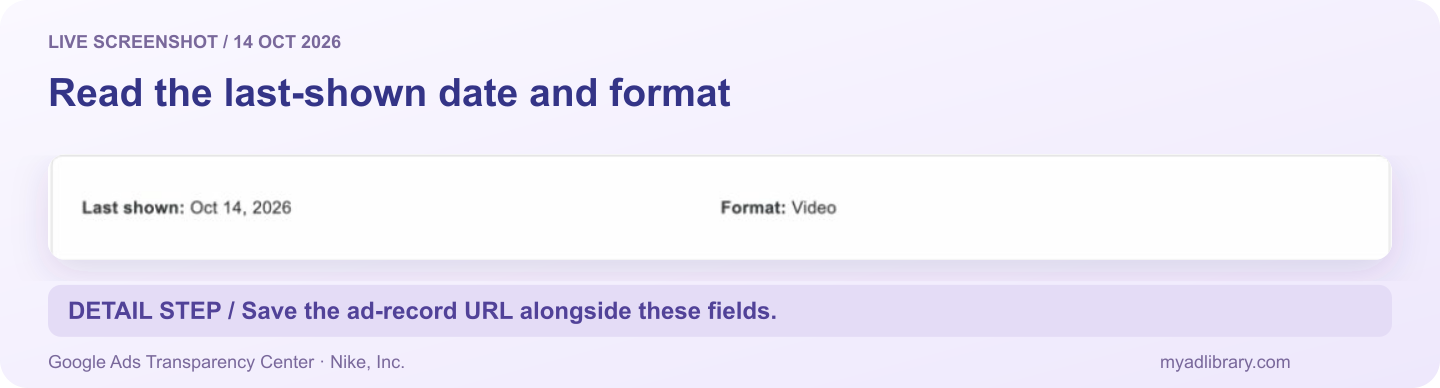
Excerpt from the selected Nike, Inc. record, captured October 14. It shows Last shown: Oct 14, 2026 and Format: Video. The date is source context, not a conversion metric or a promise that every record has the same fields.
Step 4: compare what viewers actually see
Use consistent fields instead of informal “good ad” ratings:
| Field | Observation to make |
|---|---|
| Opening | The first visible action, spoken line or written promise |
| Product introduction | When and how the product or service becomes identifiable |
| Demonstration | What the creative shows someone doing |
| Evidence | The support offered for its central message |
| Offer | Price, trial, discount or benefit, including visible conditions |
| Direction | The action the viewer is asked to take |
| Version | Language, length and visual differences that matter to the comparison |
If timing matters, replay the reference and note the point where a specific event occurs. Do not impose a timing value you did not observe. A precise note such as “The product appears before the narrator names it” can be useful without claiming a universal ideal number of seconds.
Keep three kinds of statement separate. A visible choice is an observation. An explanation of why it might work is a hypothesis. A decision to change your next creative is a proposed test.
For example: “The selected ads demonstrate setup before the offer” describes the set you reviewed. “We should test a setup demonstration against our current testimonial opening” describes your next action. Neither statement requires guessing a competitor's conversion rate.
What public ad records do not prove
A YouTube ad library is a source of creative references, not a substitute for a competitor's campaign analytics. A listing, visible duration or repeated version does not establish profitability, audience fit or the best opening for your brand.
Available disclosures can differ by location. Google's policy describes additional information for some regions, including targeting and recipient information. Inspect the fields available to your chosen record rather than claiming that all records contain the same targeting details, or that targeting information is absent everywhere.
The collection should also be distinguished from sponsored creator content. A paid endorsement inside a creator's upload and a video served as an advertiser's ad involve different research questions. Label the type of source you actually reviewed rather than combining every mention of a brand into one paid-ad count.
Step 5: retain the record and any accessible media link
Keep the Google ad-record URL, advertiser identity and scope in your research document. If the record or player offers an accessible underlying YouTube video link, open it and confirm it matches the same creative.
For permitted file retrieval, MyAdLibrary provides the YouTube Ad Downloader. It expects a supported YouTube video or Shorts URL. A Google transparency record, a channel page and a product landing page are different inputs. The YouTube download guide explains this handoff and the observed video-versus-thumbnail controls.
If no video link is available or retrieval fails, retain a source-only reference. That is still useful evidence for an opening, demonstration or offer comparison. Do not report a successful download until you have opened the saved file.
Keep notes separately from media. A downloaded file should not be assumed to include ad copy, complete disclosure fields or a local research document. If you use Swipe File, login is required, and a browser save does not automatically establish an account entry. Our organization guide provides an external indexing method you can adapt.
When the expected ad is missing
| Problem | Useful next check |
|---|---|
| No clear advertiser match | Try a verified website/domain clue or the entity shown in an ad disclosure |
| Too few relevant records | Check country, date window and the selected business identity |
| Video results are not clearly YouTube-specific | Review the platform filter and individual-record evidence |
| The creative is absent from the public channel | It may not be a publicly listed upload; keep the ad record and any accessible video link |
| You cannot find an ad you remember seeing | Use the advertiser name and market if known; do not assume a complete personal viewing history |
| A reference opens but cannot be saved | Keep the record, observations and availability status; request an authorized source from the owner when relevant |
YouTube explains that unlisted videos can be accessible by link while absent from ordinary search. That is one reason channel browsing and ad-record research can produce different sets. It is not proof that a specific missing creative is unlisted.
For a separate Instagram comparison, follow the Instagram ad library guide and preserve its own platform evidence and search conditions.
FAQ
Is there an official YouTube ad library?
Google Ads Transparency Center is the official starting point for searching advertisers and ads across Google services including YouTube. It is a shared Google repository, so narrow the results to your task.
Can I search by competitor website?
Yes. Google documents advertiser or website-name searches. Check the entity and the record information before attributing the results to your competitor.
Does the library show only verified advertisers?
No. Google's current policy includes verified and unverified advertisers. Read the verification and identity details available for the specific entity.
Can I see how much a competitor earns from an ad?
A public creative record does not establish the competitor's sales, profit or return on ad spend. Use it to develop a creative hypothesis and evaluate your own campaign with your own data.
Can I download the videos I find?
You need an accessible, supported media link and applicable permissions for a file workflow. MyAdLibrary's YouTube downloader uses a YouTube video URL, not the Google ad-record URL. Retrieval is conditional; keep source notes if a file is unavailable.
Build a comparison you can revisit
Search one advertiser in Google Ads Transparency Center, set a clear scope, and record a few distinct creative choices. Keep the source record with each reference. When you have an accessible video URL and the required permissions, the YouTube Ad Downloader is the next place to try the media workflow.