
TL;DR
- To download YouTube ads through a pasted-link workflow, you need the underlying supported YouTube video URL. A Google Ads Transparency Center record or an advertiser's product page is a different destination.
- If you own the uploaded video, use YouTube Studio's native download option, Google Takeout, or your original production file first.
- MyAdLibrary's YouTube Ad Downloader offers a free browser entry for supported video and Shorts links. Submit the URL, then inspect any returned media before saving.
- A valid link does not guarantee retrieval. An October 14, 2026 example returned a video preview and download controls; an opened local file and paid placement were not verified for that example.
- Keep the ad record, video URL, advertiser and capture date together. Observe platform terms and content permissions; a downloader does not grant reuse rights.
The hardest part of downloading a YouTube ad is often identifying the correct video. The address of the video you were watching, the ad's landing page and the ad's transparency record can all look like useful links while pointing to different things.
This guide explains how to download YouTube ads when you have an accessible, supported creative URL and the required permissions. It also gives you a practical fallback when you can view an ad but cannot retrieve its media.
Start with the owner download when it is your ad
If your team uploaded the ad video, ask for the original production export or use the upload owner's native tools. YouTube documents a download route in YouTube Studio: sign in, open Content, find the video, and choose its menu's Download action. The same help page points to Google Takeout for downloading your uploaded videos.
This is an owner workflow. It does not provide a native download option for another advertiser's upload. For a client project, an approved source file also makes it easier to identify the exact version, audio rights and production quality.
For third-party references, public availability and permission are separate questions. YouTube's terms restrict downloading except under their specified permissions or applicable law. Use an authorized route where those conditions are met; otherwise retain the source link and written observations. A research purpose alone should not be treated as blanket permission.
Identify the ad record and the video separately
Use the official Google Ads Transparency Center to find an advertiser's ad records. Our YouTube ad library guide covers advertiser/domain searches and the context to record.
Google also documents advertiser disclosures accessed through YouTube's info or three-dot icons in its ads transparency guidance. Those disclosures help identify the advertiser. They should not be described as a guaranteed button for exporting the video or revealing its underlying URL.
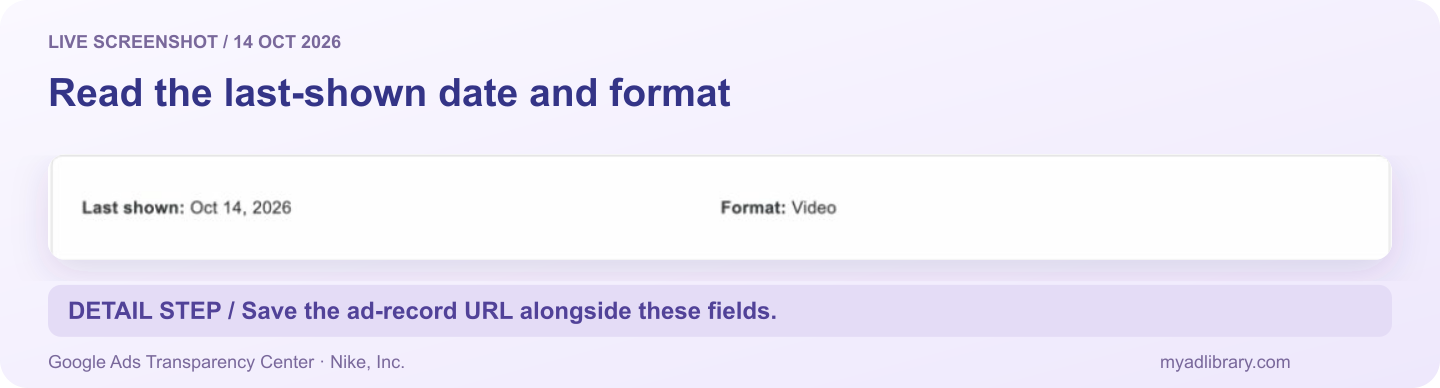
A real Nike, Inc. ad-record excerpt, captured October 14. These fields describe the ad record; they do not supply a YouTube video URL or a completed media export.
| Address you copied | What it identifies | Appropriate next step |
|---|---|---|
| A Google transparency detail URL | An ad record and available disclosures | Retain it for context; look for an accessible underlying video if offered |
youtube.com/watch?v=... | A specific YouTube video | Play it and confirm it is the ad creative |
youtube.com/shorts/... | A specific Short | Match the creative; do not infer paid status from the format alone |
youtu.be/... | A shared video link | Reopen it and confirm the selected video |
| A channel or search-results URL | An account or a collection | Open the particular creative first |
| The advertised store or signup page | The ad's landing destination | Return to the creative; this is not its video file |
An ad-library URL identifies a record; a video URL identifies the media you want to replay. Keep both when you have them. The YouTube downloader accepts supported YouTube video addresses, rather than Google transparency detail pages or product destinations.
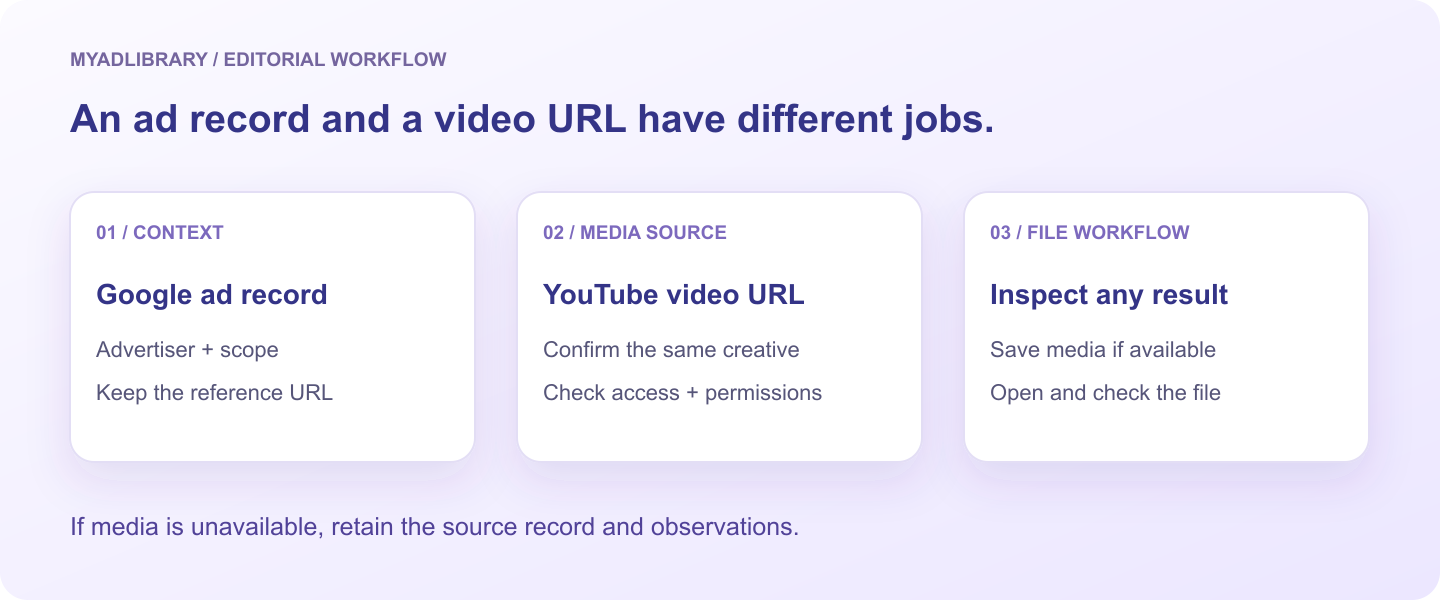
The source record remains useful even when no downloadable media is available.
If the available player provides a way to open the underlying YouTube video or copy its video link, use it and check the result. If it does not, retain the record instead of inventing a video ID or repeatedly submitting the transparency address.
Step 1: confirm the source video
Open the copied YouTube URL in a browser. Compare the video with the ad you wanted: the opening, product, offer and version should match. A brand can publish several edits using similar thumbnails.
Some videos are unlisted. YouTube explains in its privacy settings help that an unlisted video can be viewed by people with its link and does not ordinarily appear in search. Unlisted is different from private; finding a brand's channel does not guarantee you will find an unlisted creative there.
A link that plays is a useful starting condition, but it does not establish that a downloader can retrieve it. If the video is unavailable or access-restricted, resolve that at the source or request an authorized file from its owner.
Step 2: submit the URL to the browser tool
Open MyAdLibrary's YouTube Ad Downloader. Paste one supported URL into Paste a YouTube link, then select Download. Wait for the analyzing state to finish.
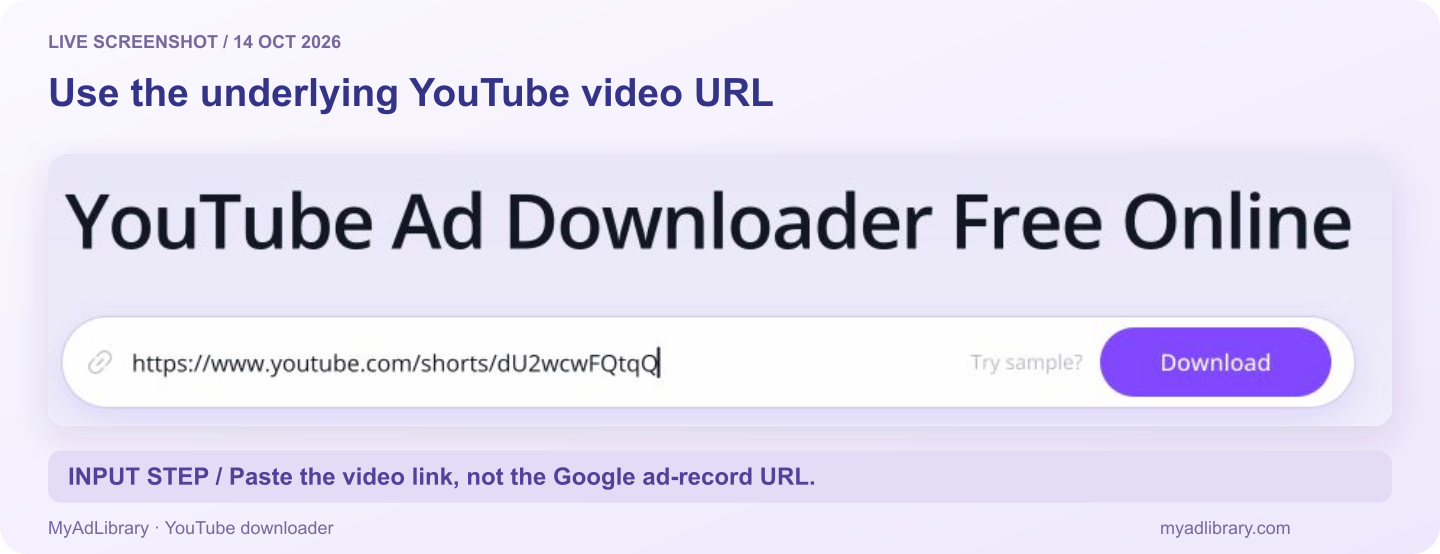
Live input captured October 14. This is the underlying Shorts URL used in the result example below, rather than the Google transparency record shown earlier.
The first button retrieves a result. It should not be described as proof that a playable file reached your device. If no media appears, use the troubleshooting table below and keep your source notes.
The Try sample? control fills a built-in example. Examples demonstrate an input route; their presence does not prove they are paid ads or that each remains retrievable. Earlier October 13 attempts produced no visible result. For the screenshots captured on October 14, a different built-in Shorts URL, youtube.com/shorts/dU2wcwFQtqQ, returned a video preview for Naughty cats with video and thumbnail controls. This is a public content example with paid status unconfirmed, and it is separate from the Nike ad record shown above. A returned preview does not verify the final file-save step.
Step 3: choose the returned asset, when available
The observed YouTube result provides Download Video and Download Thumbnail actions. Inspect the preview before using either.
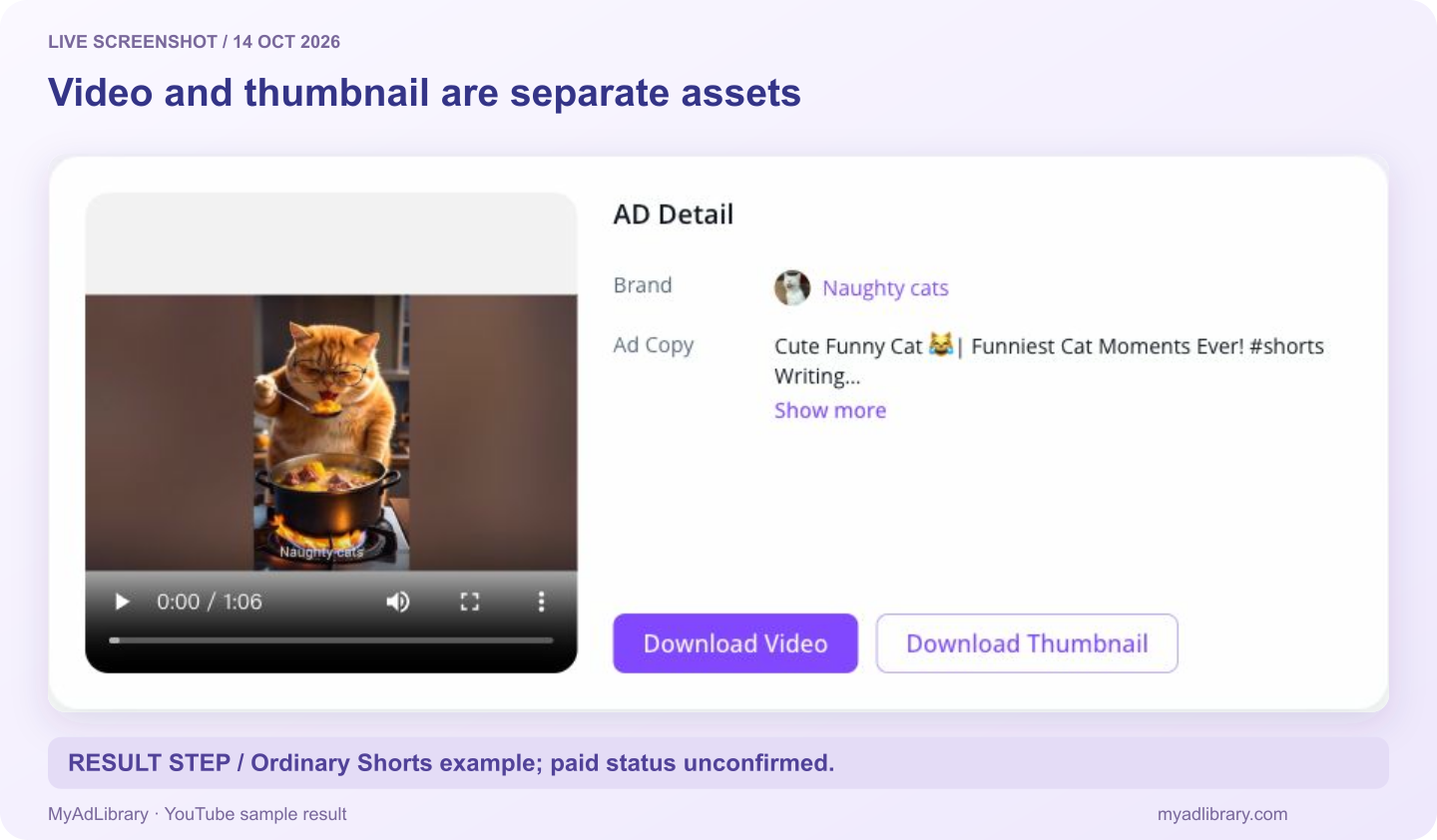
Same input and result, captured October 14. The sample is ordinary Shorts content, not an independently confirmed paid ad. The screenshot establishes the returned media and controls, not a successful local download.
- Download Video is the relevant action for motion, voiceover, pacing and the sequence of claims.
- Download Thumbnail saves a still reference for identification; it cannot show timing or sound.
Follow the controls actually present in your result. The current shared result workflow does not provide a resolution-selection step. Do not assume that a particular source can be exported in 4K or that the retrieved file equals the advertiser's production master.
After a save completes, open the downloaded file and inspect the part you need to study. Check audio, duration and the correct creative version. An on-page preview and an opened local file establish different stages of success.
If the download does not produce a usable file
| Symptom | Next action |
|---|---|
| The input is rejected | Confirm it is one supported YouTube video or Shorts URL, rather than a channel, landing page or Google ad record |
| The wrong video appears | Compare its ID and opening with the original creative; replace any sample address |
| Analysis finishes without media | Reopen the source and note the missing result; a valid URL alone does not guarantee retrieval |
| A source is private or unavailable | Ask its owner for an authorized file or retain a source-only research note |
| A still image is saved | Check whether Download Thumbnail was selected |
| The result loads but the browser has no file | Check the browser's downloads list for completion, failure or an outstanding save prompt |
| Audio or a needed sequence is missing | Recheck the source and downloaded asset; do not report the reference as complete |
| A usage limit is shown | Follow the displayed guidance; an account sign-in should not be assumed to remove every limit |
Avoid diagnosing every failure as an expired ad or a removed video. The visible result may not reveal the cause. Record what happened and which URL you used before selecting another reference.
On a phone, find the result in the browser's downloads view or device file app. Do not assume that a browser download automatically appears in your photo library.
Keep a reference that survives a missing file
Even when media retrieval is unavailable, an identified source and a precise observation can inform your brief. Use a short reference record:
| Field | What to keep |
|---|---|
| Advertiser | The name or entity shown in the ad record |
| Ad source | The Google transparency detail URL, when available |
| Media source | The actual YouTube video URL, if accessible |
| Research scope | Country, period and capture date |
| Creative note | The opening, demonstration, offer or action you observed |
| Asset status | Link only, media retrieved, or local file opened and checked |
For example, “The opening demonstrates the task before naming the product” is a useful observation. “This ad is profitable because it is still visible” is a conclusion the public reference does not establish.
The swipe file organization guide provides a consistent external index you can adapt. If you use MyAdLibrary's Swipe File, it requires login; a local YouTube download should not be assumed to have created a saved account record.
For Instagram references, follow the separate Instagram download workflow. The source links and advertising context differ, even when your research fields are the same.
FAQ
Can I download a YouTube ad directly from Google Ads Transparency Center?
The center is an ad-discovery and disclosure source. The current MyAdLibrary YouTube input expects a supported underlying YouTube video URL, not a Google transparency record. If no accessible video link is provided, keep the record and your observations.
Is MyAdLibrary's YouTube downloader free?
It offers a free browser entry for supported links. Free access does not guarantee source availability, unlimited use or a successful file download. Inspect the current messages and returned media.
Can an unlisted ad video be retrieved?
An unlisted video can be accessible to someone with its link, but that does not guarantee download support or permission. Confirm source access and the conditions that apply. A private video is a different case.
Can I download my own YouTube ad video?
Use the upload owner's YouTube Studio download option, Google Takeout or the original production file. These owner routes are the clearest starting point when your team needs its own asset.
Does YouTube Premium supply an editable ad file?
YouTube's help distinguishes offline app viewing from downloading your own uploaded videos. Do not treat offline viewing as a general export workflow for third-party creatives.
Start with an identified creative
Find the actual video URL and retain its ad record where available. When access and permissions allow, try the YouTube Ad Downloader, inspect any returned media, and check the saved file. If retrieval is unavailable, keep a traceable source reference and observation through MyAdLibrary's research workflow.