
TL;DR
If Facebook Ad Library is not working, first identify the symptom. A page that will not load suggests a loading or access problem; a working page with no results calls for a filter and advertiser check; one unavailable ad may reflect source availability or archive coverage. Changing browsers cannot recover an ad that Meta no longer makes available.
Start at the official Meta Ad Library, confirm the country and All ads, select the correct advertiser, and remove unnecessary filters. If the source opens in Meta but a separate download request fails, troubleshoot that request independently using the Facebook Ad Library Downloader.
Match the fix to the symptom
Before changing settings, write down what failed: the homepage, search results, one ad's details, video playback or a third-party download. Keep the original URL so you can return to the same source after each check.
| What you see | First check | What it does not prove |
|---|---|---|
| A blank page, repeated loading or an error | Open the official library homepage and try a fresh browser tab | That the advertiser has stopped all ads |
| The page loads but shows no matching results | Country, category, advertiser identity and filters | That the library is experiencing a global outage |
| Results belong to unexpected companies | Keyword search versus advertiser selection | That Meta has assigned ads to the wrong brand |
| A known ad is missing | Original ad link, timing, status and archive scope | That the advertiser deleted it or that it failed |
| Ad details open but media retrieval fails elsewhere | URL type, individual-ad retry and returned error | That the Meta search itself is broken |
Move through one branch at a time. If you change country, browser and advertiser simultaneously, a successful retry will not tell you which change resolved the problem.
1. If the library will not load, isolate the page problem
Open the official library homepage in a fresh tab. If an old bookmark points to a heavily filtered search or an individual ad, starting at the homepage helps separate that saved view from a broader loading issue.
Refresh once and check whether other pages load normally. If the library remains blank, try a current second browser or a private window as a comparison. This is a diagnostic step: a different result suggests something about the browser session, extensions or stored site state needs closer attention. It is not proof of a particular cause.
If a content-blocking extension appears to interfere, test its site-specific setting rather than changing unrelated browser protections. Avoid clearing all browser data as the first step; doing so can sign you out of services without establishing why the library failed.
The library includes a System status area. Check it for a displayed service notice when the problem affects multiple searches. If the same failure occurs across browsers, retain the time and error message and retry later. This guide does not assert that an outage is occurring now.
2. If search returns nothing, reset its scope
Choose the market relevant to the advertiser and All ads for ordinary commercial research. A different ad category can produce a very different result set.
Next, open Filters. Review language, advertiser, platform, media type, active status and the impression-date range. Broaden restrictions that are not essential to your question, then apply the change. Use the visible chips on the results page to confirm what actually remains selected.
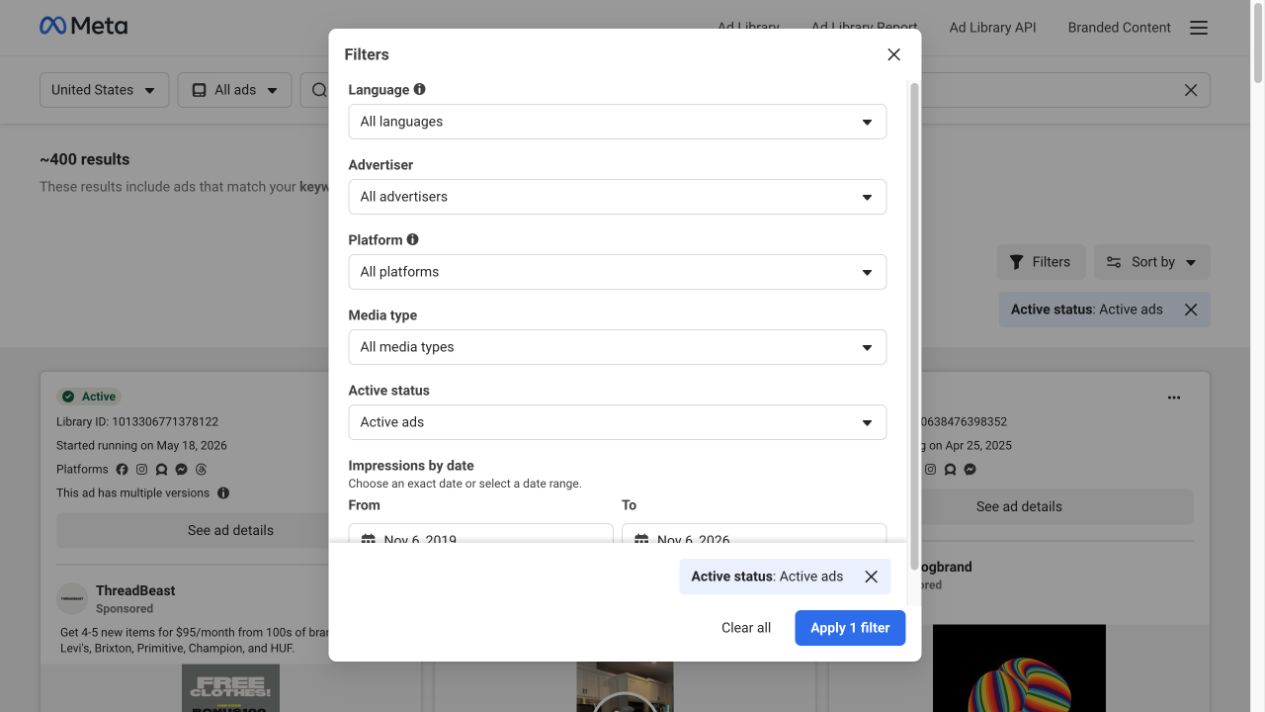
Live Meta Ad Library capture, November 6, 2026. This is a working filter dialog captured during research, not a simulated error screen. It shows the controls to inspect when a search is unexpectedly empty.
Start with all languages and media types if you do not know the ad's format. Add restrictions individually after you locate the advertiser's available ads. A narrow date range plus a video filter can hide an image ad that is otherwise available.
Remember that date controls and status answer different questions. Restricting impressions to a period does not turn the library into a complete archive of every ad that once existed.
3. If the wrong ads appear, select the advertiser explicitly
Searching for a brand name as a keyword can retrieve ads from resellers and other businesses that mention it. That behavior can look like a broken search when you expect only brand-owned ads.
Type the name again and choose the matching entry under Advertisers. Check the handle and Page identity, especially for brands with regional or product-specific Pages. An ordinary Facebook Page address is also different from the advertiser's Ad Library results address.
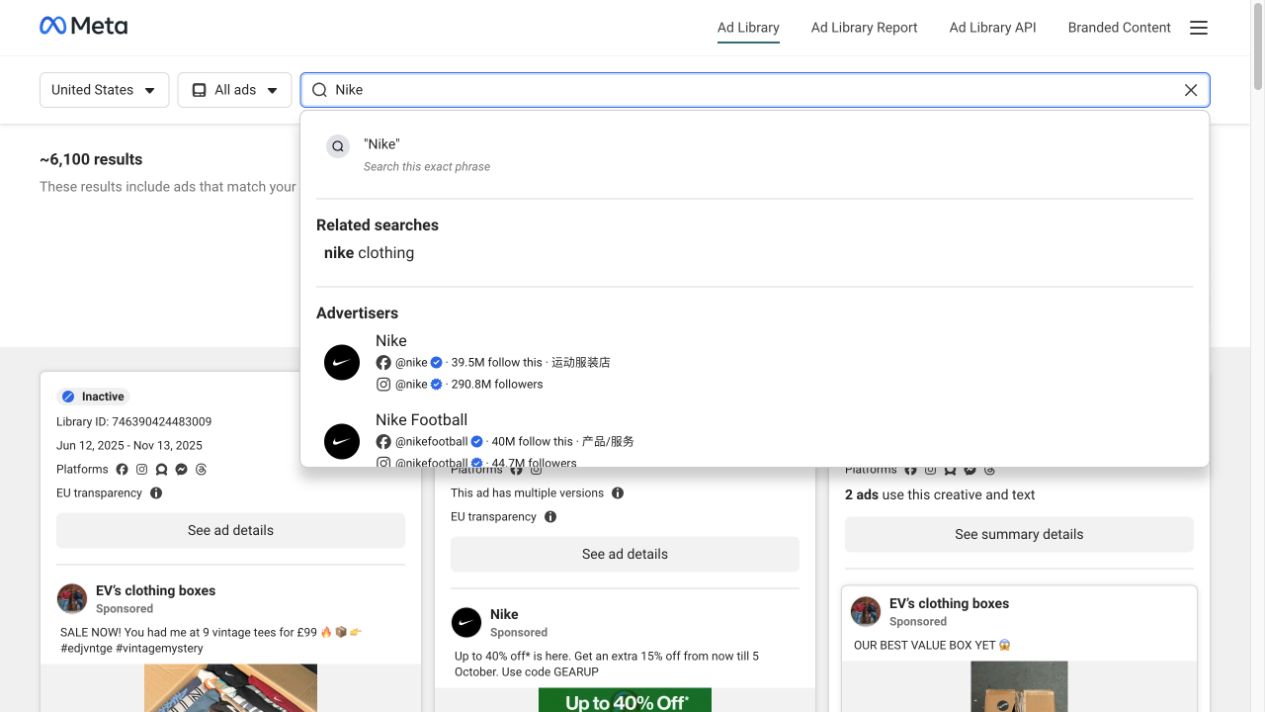
Live capture, November 6, 2026. Selecting the advertiser entry narrows the search differently from selecting a related keyword or exact phrase.
In our session, “nike clothing” keyword results included several advertisers. Choosing the Nike advertiser opened a separate Page view. An unexpected company in a keyword result was therefore not evidence of a search malfunction.
4. If one ad is missing, check timing and historical coverage
Use the original individual-ad link if you have it. Confirm that its id= value is intact and that it points to Meta Ad Library rather than a landing page or a regular Facebook post.
For a newly launched ad, allow for reporting delay. Meta states on the Ad Library homepage that ads appear within 24 hours of their first impression, and changes or updates also appear within 24 hours. The relevant starting point is first impression, not simply the moment someone creates a campaign.
For an older ad, check whether you are viewing only Active ads. An inactive filter can reveal records that remain available under Meta's historical coverage. It cannot guarantee recovery of every stopped commercial ad. Regional and ad-category archive rules matter.
If a record remains unavailable after these checks, describe that limited outcome accurately: “The original link was unavailable when checked.” Do not turn it into a claim that the advertiser was banned, the campaign failed or the creative was permanently deleted.
5. If Meta works but the download fails, check the submitted source
First open the source directly in Meta. Then compare the URL you submitted with the task you intended:
| Source pattern | Intended scope |
|---|---|
Meta library URL containing id= | One ad record |
Meta library URL containing view_all_page_id= | One advertiser's library collection |
| Regular Facebook Page or profile URL | Public Page or profile content |
Submit the actual individual-ad URL to the Facebook Ad Library Downloader and inspect the response. If a collection request failed, an individual retry may help distinguish the collection problem from a particular ad's media availability. Do not assume a downloader can restore content that is absent from the source.
Returned fields and media vary by source. A visible preview is not proof that every asset or version can be retrieved, and free access is subject to availability and usage allowances. If the interface reports a limit, follow that stated boundary rather than repeatedly resubmitting the same request.
For the normal retrieval sequence, use our Meta Ad Library video download guide. If your goal is several ads from one Page, the advertiser bulk-download guide explains the correct starting URL.
Keep a useful failure note
A short record makes a retry or support conversation more useful. Save the source URL, advertiser, country, filters, time checked and exact visible message. Add whether the source opened in Meta and whether the failure affected one ad or every request.
For example: “The ad-details page opens; the advertiser collection request returns no media; an individual retry is still unresolved.” That separates what succeeded from what remains unknown without overstating the diagnosis.
Once the source works, keep its link with any saved reference in MyAdLibrary. You will have the context needed if the live ad later changes.
FAQ
Why does Facebook Ad Library show no ads for a business?
Check the selected Page, country, category and filters first. The business may use another Page, have no matching active ads, or have historical ads outside the available archive. An empty view alone cannot distinguish all these possibilities.
Does clearing the cache fix Facebook Ad Library?
It may help with some local browser-state problems, but it does not fix restrictive filters or restore unavailable source content. Compare a fresh session before removing stored data.
Why is my new ad not showing yet?
Meta's published timing is within 24 hours after the first impression. Also verify the Page and search conditions. Creating an ad does not by itself establish that it has delivered an impression.
Can a downloader fix a missing Meta ad?
A downloader can retrieve supported media that remains available from its source. It should not be treated as a guaranteed archive or a way to recover every removed or inactive ad.