

TL;DR
- To bulk download Facebook ads from one advertiser, use its Meta Ad Library advertiser/Page link in Facebook Ad Downloader.
- A library URL containing
view_all_page_id=identifies an advertiser's ads. A regularfacebook.com/{page}address identifies public Page content instead. - For one specific ad, use its library link containing
id=. For a post, video or Reel, use that content's individual address. - Review the returned records and media before downloading. Several files may belong to one carousel or creative variant set; they do not necessarily represent several ads.
- Batch support covers available content returned for the source. It does not promise every historical ad, a fixed free batch size, or access to private posts.
Bulk collection is useful when your question spans several ads: which offers a competitor repeats, how its hooks differ, or whether the same concept appears as a video and a carousel. Downloading one ad at a time makes it easy to lose the relationship between those references.
The first decision is the source. An advertiser's paid ads and its public Facebook posts are separate collections, even when they belong to the same brand. This guide explains how to bulk download Facebook ads while keeping that distinction intact.
Choose the advertiser link rather than the regular Page
Start in the official Meta Ad Library, find the advertiser, and open its Page-specific results. Confirm the Page identity before copying its address. Similar names, regional Pages and resellers can lead to very different research sets.
Meta's Ad Library announcement explains the library's role in making active Page ads visible. Treat the library as the source of paid-ad context; a brand's ordinary Facebook feed serves a different purpose. Availability and historical coverage depend on the library's current scope.
The following addresses are URL patterns. Replace the placeholders with values from the real source; they are not sample ads to submit unchanged.
| URL pattern | What it selects | Use it when you need |
|---|---|---|
https://www.facebook.com/ads/library/?view_all_page_id={page_id} | Ads associated with a particular advertiser/Page | A set of that advertiser's available ads |
https://www.facebook.com/ads/library/?id={ad_id} | One ad record | One exact ad or an individual retry |
https://www.facebook.com/{page} | Public content on a Facebook Page or profile | A public-content collection, rather than a paid-ad collection |
https://www.facebook.com/{page}/posts/{post_id} | One post | Its available images or video |
https://www.facebook.com/watch/?v={video_id} | One video | A specific public video |
https://www.facebook.com/reel/{reel_id} | One Reel | A specific public Reel |
MyAdLibrary supports these public-content sources as well as Meta Ad Library single-ad and advertiser inputs. Choose the address that matches your task. Do not replace an advertiser link with the brand's ordinary Page URL and expect an equivalent set of ads.
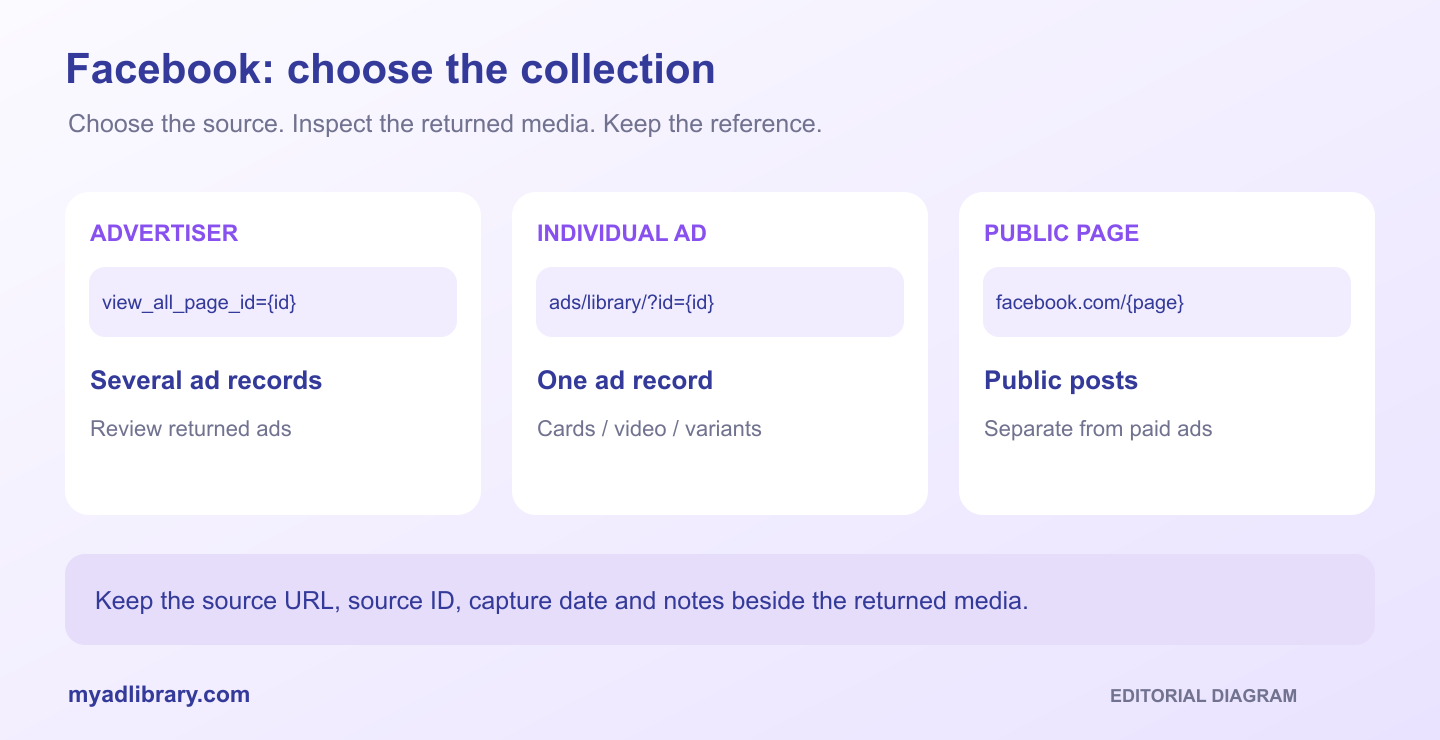
Source-selection diagram. These cards illustrate URL scope; they are not a product screenshot.
Step 1: define what this batch should answer
Before collecting, write one question and the source conditions beside it. For example: “How does this advertiser explain the same product benefit across its currently visible video and carousel ads?”
Record the advertiser/Page identity, the country and filters used in the library, the source URL, and the capture date. These notes describe what you inspected. Do not assume every filter or sort order on the library page will automatically be preserved by a third-party download request.
Use a small, relevant selection for the first review. A larger pile does not make the analysis more complete if it mixes unrelated countries, offers or advertiser identities. Keep those dimensions consistent when you compare two brands.
If you have not chosen a paid-ad source yet, our Meta Ad Library download guide explains the individual-ad starting point. Return to the advertiser view when your task calls for several records.
Step 2: submit the advertiser's Ad Library address
Open the Facebook Ad Downloader, paste the actual advertiser URL, and select Find media. MyAdLibrary provides a free browser entry without signup for downloading; availability and usage limits can still apply.
Let the request finish, then inspect what was returned. Match the advertiser identity and available source details to the library page you intended to collect. A successful request is not enough by itself: the results must describe the right source.
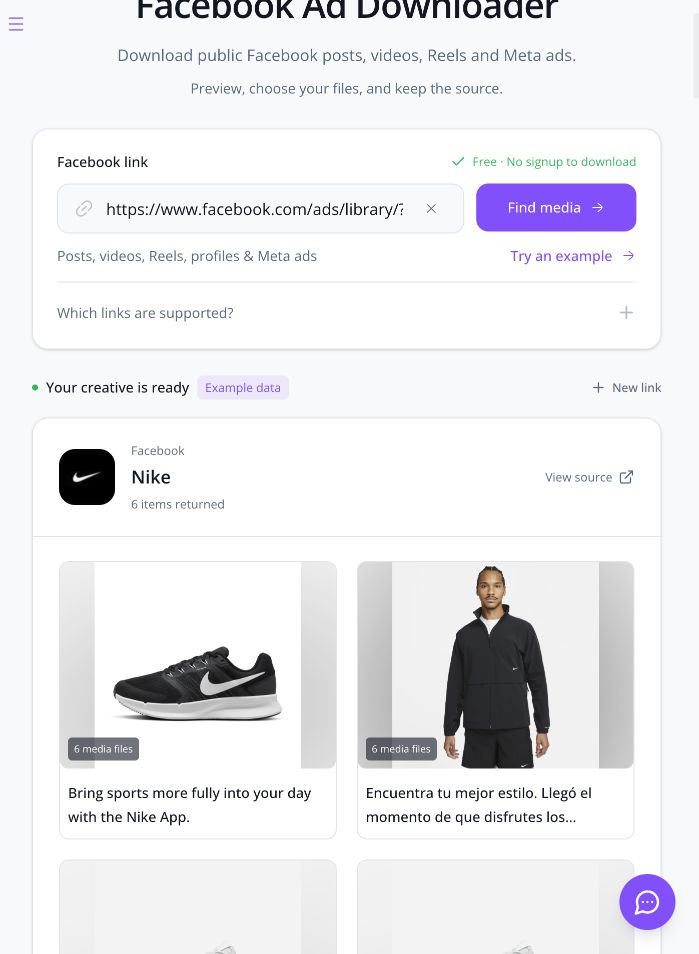
Development capture, October 29, 2026: the built-in Nike advertiser example displays six returned items. The visible Example data label identifies a demonstration set, rather than an independently measured complete advertiser archive.
In this captured development interface, the collection note says it currently shows up to the first six items per request. Open a returned item to preview, download or save it individually. This is a limit observed in this preview, not a promise about the complete advertiser history or a permanent free-plan allowance.
If the address is rejected, reopen the advertiser in Meta Ad Library and copy its current URL. Check for view_all_page_id= and a real Page ID. A search-results address, a landing-page URL and a placeholder copied from this article identify different things.
If an advertiser request cannot retrieve an item you need, try that ad's individual library link. This helps separate a collection-level issue from a problem with one creative. Keep the original advertiser address in your notes so the retry remains connected to the batch.
Step 3: count ad records and media separately
A carousel can return several cards. A record can also contain creative variants. Neither means the advertiser ran the same number of independent ads as the number of returned files.
Keep two counts in your review:
- Ad records: distinct source ad IDs where available.
- Media assets: the videos, images, cards or variants associated with those records.
An illustrative collection containing three ad records might produce one video, four carousel cards and two image variants. That would be seven assets across three records. These numbers describe an example, not a MyAdLibrary batch limit or a tested export.
Check the source before merging apparently identical creatives. The same opening frame can appear with different copy, offers or calls to action. Conversely, separate records can point to media that looks the same. Preserve the record IDs before deciding whether you need both files.
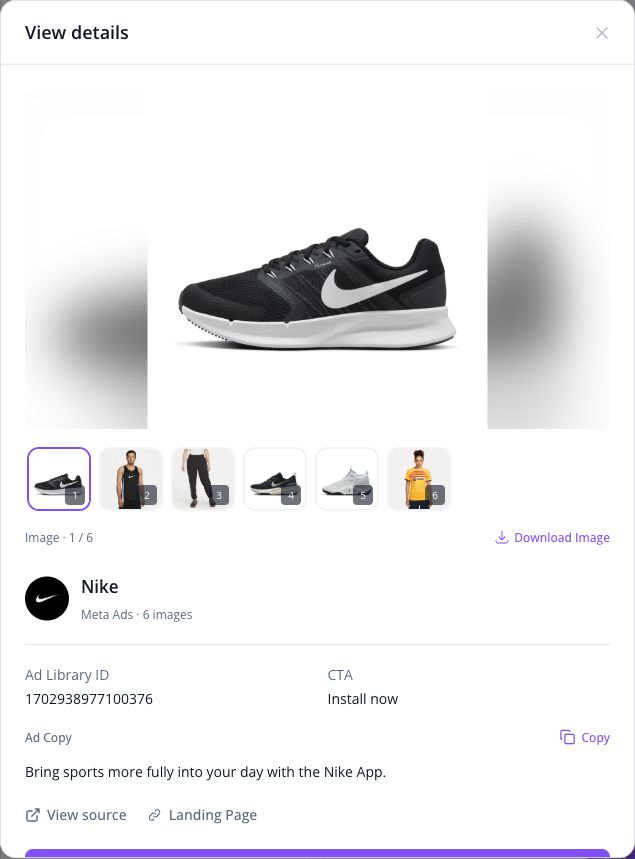
Opening item 1 in the same built-in example reveals six media assets within one ad record. Its source ID and copy remain distinct from the collection count. This screen demonstrates preview controls, not a completed file export.
Step 4: download the useful assets with their context
Review the media returned for each reference. A video preview, its cover image and a carousel card serve different purposes. A saved cover is useful for a visual index, but it cannot replace the video when you want to study pacing or audio.
Use the available download controls for the returned selection. Where the result offers Choose files and Include ad copy & source details, include that context if your task needs it. Do not assume a standalone media download carries a separate text record or that every source returns every metadata field.
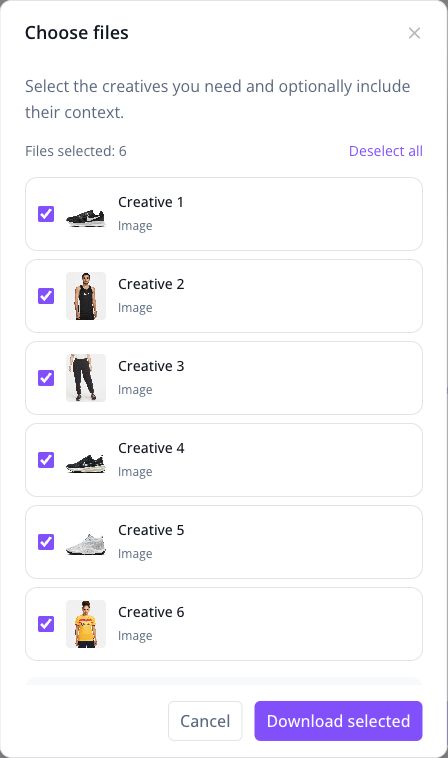
Actual file-selection dialog for the opened example ad. The six selected files belong to this record; this is not a single export of all six advertiser records. The screenshot stops before starting the download.
Our guide to downloading Facebook ads with copy and source details explains the reference-package workflow. That article focuses on the contents of an ad package; this guide focuses on collecting several ads from the right advertiser.
After downloading, open the files and compare them with the source. For an archive, check which items actually arrived. Keep a note of missing or failed assets instead of silently treating the batch as complete. Retry the affected item where possible rather than discarding an otherwise useful collection.
Make the batch useful for your next creative brief
Keep a simple index beside the files. This is a recommended research document, rather than a promise of an automatic CSV export.
| Field | Why keep it |
|---|---|
| Advertiser/Page name and ID | Distinguishes similarly named businesses |
| Individual ad URL and ad ID | Connects each reference to a paid-ad record |
| Capture date and library scope | Explains when and where you found it |
| Local filename or folder | Makes the media retrievable |
| Observed hook, offer and CTA | Captures what you actually saw |
| Missing assets or fields | Makes incomplete coverage explicit |
| Your proposed test | Separates a new idea from a captured fact |
For example, “three references open with a product demonstration” is a creative observation. “Demonstration ads convert best” would require performance evidence that the downloaded media does not establish. Active status, repeated concepts and long running periods do not reveal a competitor's ROAS.
If you keep references in Swipe File, sign in for the account workflow and confirm the save succeeds. Downloading to your device and saving to your account are separate actions. For a fuller naming and review system, use our ad swipe file organization guide.
Troubleshoot the source or stage that failed
| What happened | What to check next |
|---|---|
| You received public posts when you wanted ads | Replace the normal Page URL with its Meta advertiser link |
| You received only the ad you already opened | Check whether you submitted id= rather than view_all_page_id= |
| Several images appear under one reference | Inspect whether they are carousel cards or variants before counting ads |
| The batch contains fewer items than expected | Compare the returned records with the visible source; note scope, availability and any limit message |
| One media file fails | Reopen its source and retry the individual ad or affected asset |
| Ad copy or a landing page is absent | Keep what was returned and record the gap; do not invent the missing field |
| A usage limit appears | Follow the stated account or retry options; repeated submissions do not establish an unlimited allowance |
FAQ
Can I download all ads from a Facebook Page?
Use its Meta Ad Library advertiser link to collect the available paid ads returned for that source. A normal Page link selects public content instead. Neither should be described as a guarantee of every ad the business has ever run.
Is bulk downloading the same as downloading all carousel cards?
No. A carousel contains several assets within one ad. Advertiser-level collection concerns multiple ad records, each of which may contain one or several media assets.
Does a public Page video prove that it ran as an ad?
No. Keep a matching ad-library record when paid placement matters to your research. A public video URL alone identifies the content, not its advertising history.
Can I publish a competitor's downloaded creative?
Downloading does not grant a license to republish another party's media, copy or music. Follow the relevant platform terms and obtain the permissions your intended use requires.
Collect the advertiser, then inspect the evidence
To bulk download Facebook ads, begin with the advertiser's library address, check the returned records, and keep each asset connected to its source. Start with one clearly identified advertiser in MyAdLibrary and use the Facebook Ad Downloader to build a collection you can explain later.