
TL;DR
- To download a Meta Ad Library video for free, copy the individual ad URL, paste it into MyAdLibrary's Facebook Ad Downloader, select Download, then choose Download Video on a video result.
- The first button retrieves the result. The buttons inside the result save the available media: a video, a cover image, one carousel slide, or a ZIP of returned slides.
- Check the advertiser, preview, and media type before saving. A carousel link produces carousel controls, even if you originally wanted a video.
- Keep the source URL or Ad ID with the file, plus one note explaining the idea worth studying.
- Browser downloading is free. Browsing your account's saved ads in Swipe File requires login and is a separate workflow.
A useful download gives you a creative you can replay and enough context to find its source later. This guide walks through the input and result screens, explains the different download buttons, and shows how to turn the file into a reference for your next brief.
Before you start: choose one public ad
Open the official Meta Ad Library, choose the country and ad category relevant to your research, and search for an advertiser or keyword. Open the particular ad you want to study. Play its preview so you know whether it contains a video, a static image, or a sequence of cards.
Copy the link to that individual ad. A typical individual-ad address includes an id value, such as facebook.com/ads/library/?id=.... Keep the complete address you copied; the number identifies the reference more reliably than a brand name alone.
A search-results address can represent many different ads. A brand's Facebook page or the advertiser's landing page is also a different destination. If you reopen the copied link and cannot identify the same creative, resolve that first. It saves time later when two ads from the same advertiser have similar thumbnails.
Before leaving the source, note the advertiser and what you want to learn: an opening line, a product demonstration, a comparison, or the way the offer appears. That one sentence gives the download a purpose.
Step 1: paste the link into the free Facebook downloader
Open the Facebook Ad Downloader and paste the individual Meta Ad Library address into the main URL field. Check the start and end of the pasted text, especially if you copied it from a message. The field should contain one complete link.
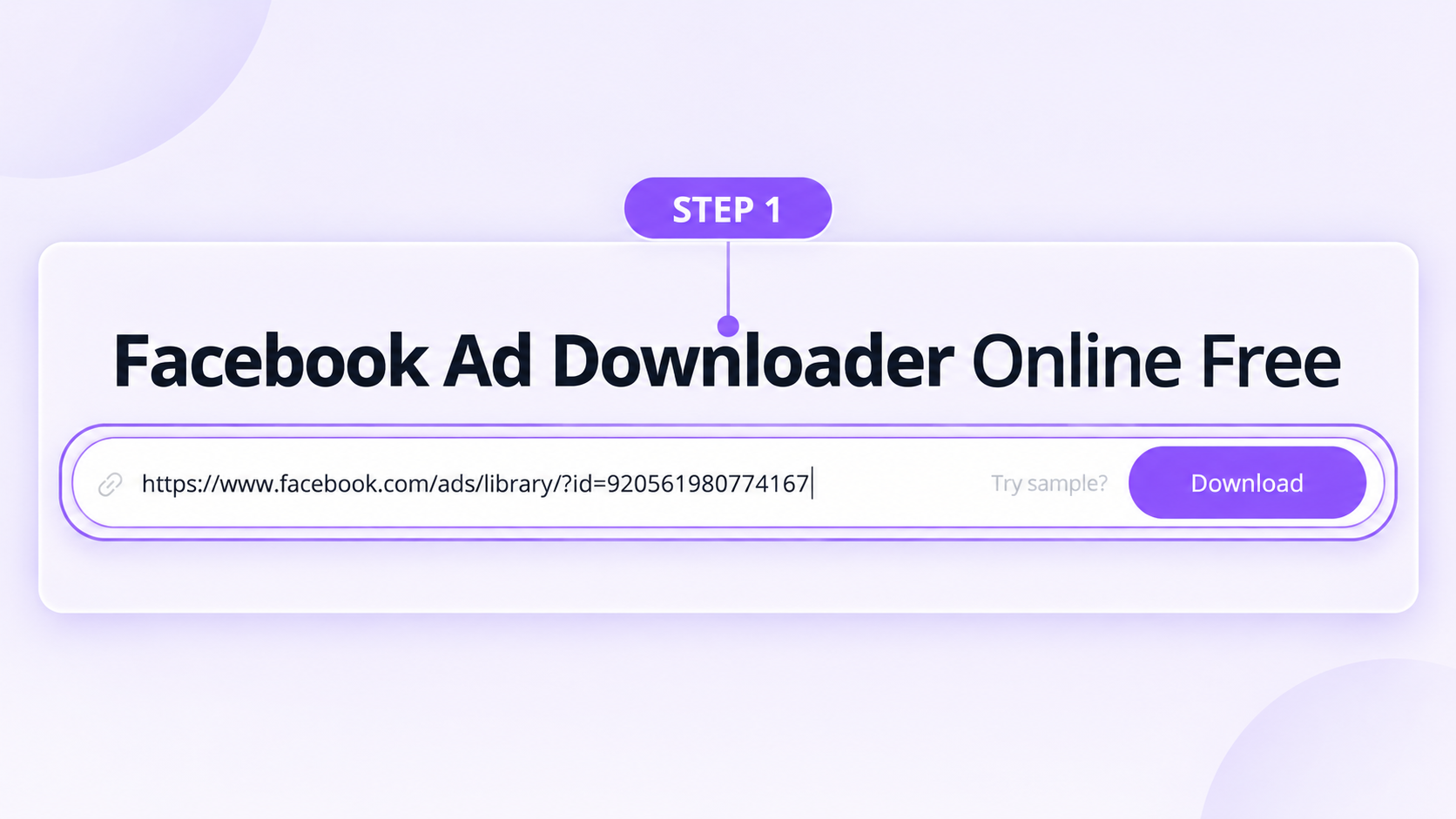
The input example contains a Meta Ad Library link with Ad ID 920561980774167. This particular example returns a carousel, shown below.
Select Download next to the input field. At this stage, you are asking MyAdLibrary to retrieve the creative information and available media. Look for the result card below the field before deciding which asset to save.
The Try sample? control is useful for learning the interface. If you use it, replace the sample address with your own selected ad before collecting a research reference. Otherwise, you may save the sample while assuming you are looking at your chosen advertiser.
Step 2: identify the returned media type
Read the AD Detail area and inspect the preview. Does the advertiser match the source? Is this the same creative you opened? Are there multiple slides? The available buttons depend on the returned media.
| Result | What to inspect | Which action to use |
|---|---|---|
| A single video | Play the preview and compare the opening with the original ad. | Download Video saves the video; Download Cover saves its still cover. |
| A single image | Check the picture and visible offer. | Download Image saves the image. |
| Multiple carousel assets | Check the slide counter and move through the cards. | Download slide N saves the selected asset; Download all as zip requests the returned set. |
Download Video and Download Cover produce different reference assets. Choose the video when you need motion, timing, spoken delivery, or editing. A cover is useful for a visual index but cannot show how the message unfolds.
Available fields also differ between ads. One result might show ad copy, while another supplies a CTA and landing page. Keep the details that are actually returned, and use the original ad to fill gaps in your research notes.
Step 3: save the video and inspect the file
For a video result, select Download Video beneath the details. Once your browser reports that the download is complete, open the file from its downloads list or folder. Play more than the opening frame: confirm that the relevant sequence is present and that the file can be reopened in the player you use for research.
If you also need a thumbnail for a brief, return to the same result and select Download Cover. Keep the cover and video together with a shared reference name. Do not rename a still-image file to a video extension; the content of the file determines what it can do.
Use this short acceptance checklist before moving to another ad:
- The advertiser and creative match the original link.
- The file opens and contains the sequence you wanted to study.
- The saved asset is a video rather than only its cover image.
- The source URL, Ad ID when available, and capture date are recorded.
- A short note says why this example matters to your campaign question.
A successful preview shows that a result was retrieved. Opening the downloaded file is the separate check that the asset actually reached your device. Network conditions and source availability can affect that final step.
If the result is a carousel, save the right slide or sequence
The example below is the result for the Facebook link shown earlier. Its 2 / 10 counter identifies the second asset in a ten-item carousel. The button changes to Download slide 2, while Download all as zip offers the returned collection.
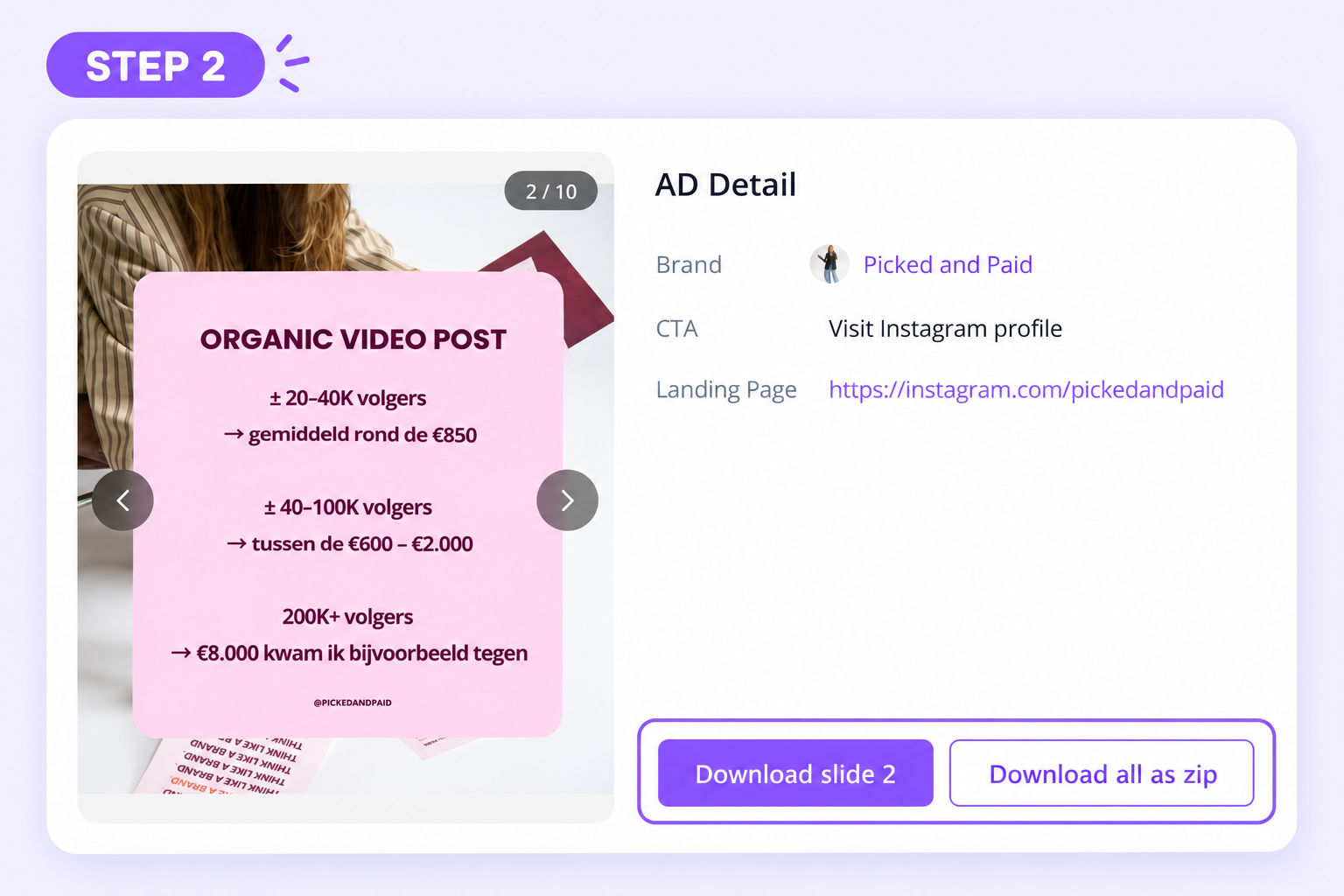
This is a carousel result, not a video-download screenshot. The counter and button labels tell you which asset is selected.
Use the arrows to inspect the surrounding slides. If your question is about a specific offer card, downloading that card may be enough. If your question is about storytelling, keep the full sequence so you can see how the opening, evidence, and CTA connect.
After extracting a ZIP, compare the available files with the sequence you intended to capture. Keep their order in your working folder, using two-digit slide numbers such as 01, 02, and 03 if you rename them. Store source notes alongside the media; do not assume that every download package includes all the metadata visible on screen.
If you wanted a video but received these carousel controls, return to the source and choose a video creative. A downloader retrieves the assets exposed by the selected ad; it does not turn still slides into a video.
Step 4: keep the reference useful after downloading
A local file and an entry in your account's Swipe File serve related purposes. The local file lets you replay the creative. The saved-ad view lets you revisit a reference and inspect its details. Downloading a file should not be treated as confirmation that it was also saved to your account.
For ads already in MyAdLibrary's Swipe File, log in, open a card, and use the detail view to reconnect the media with its source. Here is a separate saved Facebook video example:
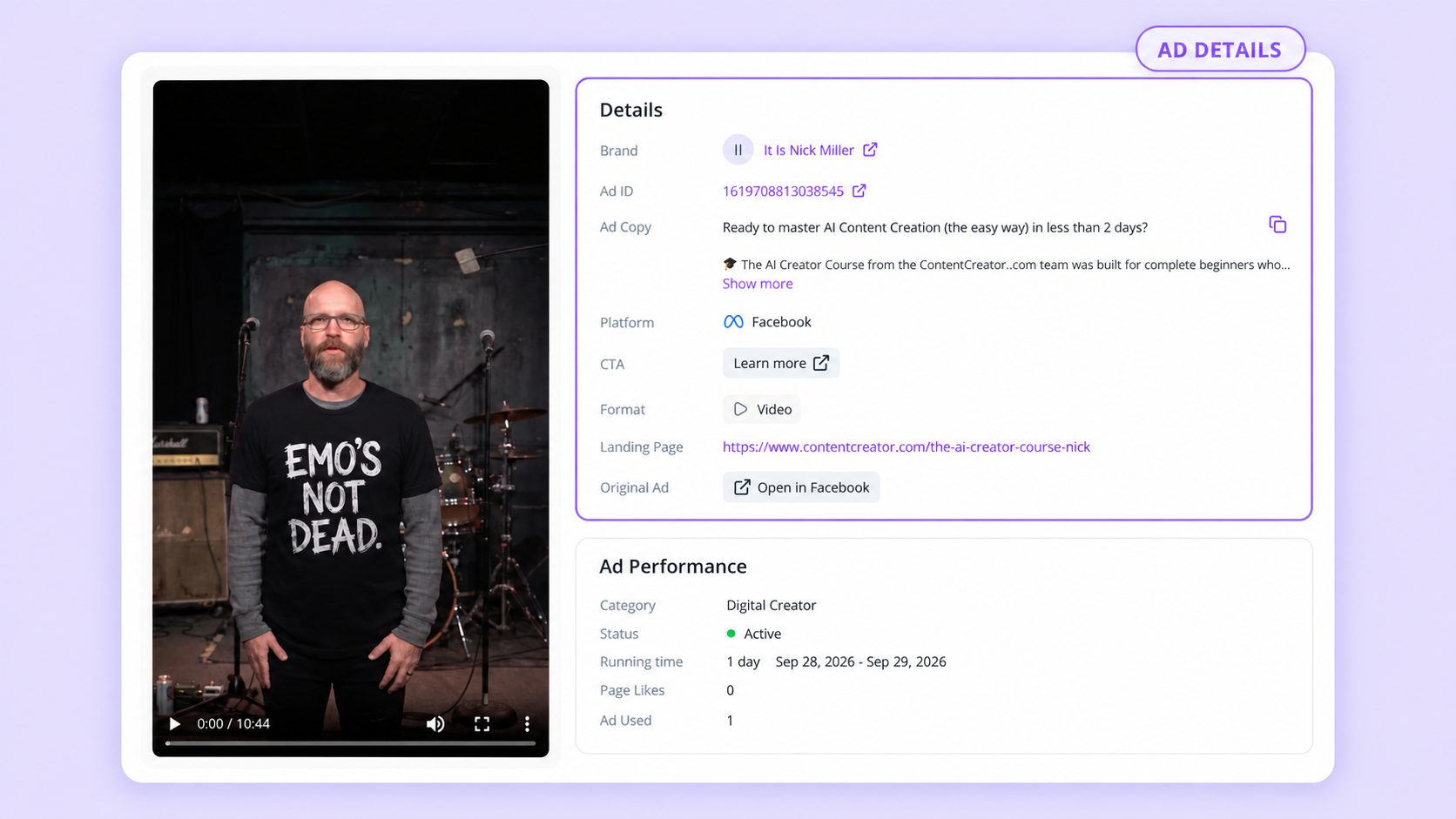
The detail view belongs to a different saved ad. It illustrates the context to retain with a video reference, rather than the output of the carousel example above.
Record the brand, Ad ID, original-ad link, CTA, and landing page when available. Expand Show more if the ad copy is truncated. For your own note, identify a concrete creative choice: “The written copy identifies beginners as the intended audience,” for example.
The Ad Performance heading includes contextual fields such as status and running time. Those fields do not establish conversions or profitability. Use them to describe the saved record, then keep your interpretation separate. Our swipe file introduction shows how to build a first collection, and the organization guide provides a set of research fields.
Troubleshoot the stage that failed
| Symptom | Next action |
|---|---|
| The input is rejected | Reopen the URL and confirm it identifies one public Meta ad. Remove accidental surrounding text. |
| A result loads for the wrong advertiser | Compare the Ad ID and preview with the source; check whether a sample link is still in the field. |
| You see a carousel when expecting video | Inspect the source's media type and select the correct creative. |
| The preview works but no file appears | Check the browser's downloads list for completion, failure, or a blocked save prompt. Retry the specific media button if needed. |
| A still image downloads | Check whether you selected Download Cover, Download Image, or an image slide. |
| A ZIP lacks a needed item | Compare the extracted files with the result and try the individual slide control for the missing asset. |
| The original ad no longer opens | Record that the source is unavailable. Find another public reference rather than assuming the old link can always be recovered. |
On a phone or tablet, start by locating the browser's download result rather than assuming a file was added to your photo library. Save locations depend on the browser and device. If the source link opens in another app, reopen it in a browser to confirm which ad you selected.
FAQ
Is the Facebook Ad Downloader free?
Yes. MyAdLibrary provides a free browser downloader for supported links. You can begin with one public ad URL. Browsing your account's saved collection in Swipe File requires login.
Do I need the Chrome extension for this workflow?
The pasted-link workflow is available on the website. The extension is a separate route offered for collecting ads, including the saved-ad workflow described on the Swipe File page. Choose the route that matches whether you need one local download or an account collection.
Will every Meta Ad Library link return a video?
No. The selected ad may contain images, carousel assets, or media that is no longer available. Inspect the result type before choosing a download action.
Can a downloaded ad be used in my own campaign?
Keep third-party creative as a research reference unless you have the necessary permission to reuse it. Study its structure and make your own footage, copy, and claims. Public visibility is not evidence of permission or performance.
Save one creative with its source
Open MyAdLibrary, use the free Facebook Ad Downloader, and finish with a playable file plus an identified source. Add one useful observation before collecting the next example. That small habit turns downloads into material you can use in a creative brief.