
TL;DR
- To download Facebook ads with ad copy, paste an individual Meta Ad Library URL into MyAdLibrary's Facebook downloader and select Get ad.
- Open Choose files, select the required creative assets, and keep Include ad copy & source details enabled. The dialog identifies the context formats as TXT + JSON.
- In the example ZIP downloaded on October 22, 2026, the files included a video, a cover image,
ad-copy.txt, andad-details.json. - A standalone video download is useful for playback; the context-enabled ZIP is useful when you also need the written offer, CTA, source link, and Ad Library ID where available.
- Local downloads are separate from account saving. Save to Swipe File requires sign-in, and source fields can vary between ads.
To keep the ad and its message together, use Choose files and leave Include ad copy & source details enabled. This exports the selected media with TXT and JSON context. Use it when you want to compare the creative with its written offer, CTA, and destination.
The browser downloader is free to use without signup for local downloading. This guide focuses on the reference package. For the basic task of saving a video alone, use our Meta Ad Library video download guide.
Decide whether you need a file or a reference package
Choose the export around the question you are asking.
| Research question | Useful output | Why |
|---|---|---|
| How does the first shot work? | Video | Movement and timing need playback. |
| What does the thumbnail communicate? | Cover image | The still frame is the subject of the review. |
| How do copy, creative, and CTA work together? | Media plus TXT and JSON context | The video alone does not retain the surrounding written message. |
| How does a carousel develop its message? | The returned sequence plus context | One selected card cannot establish the entire sequence. |
| Where did this reference come from? | Original URL and Ad Library ID when available | A filename or advertiser name alone can be ambiguous. |
The steps below describe the MyAdLibrary interface and a downloaded example. A ZIP containing several files from one ad is different from a batch containing several separate ads. Choose the source link accordingly:
| Source link | Collection task |
|---|---|
facebook.com/ads/library/?id={ad_id} | One specific ad and its available assets |
facebook.com/ads/library/?view_all_page_id={page_id} | Ads from a particular advertiser/Page |
| A normal Facebook Page address | Public Page content; a different source from its Ad Library ads |
Step 1: retrieve one identifiable ad
Start with the official Meta Ad Library and open the individual reference you want to inspect. Copy its full individual-ad URL. An address such as facebook.com/ads/library/?id=... identifies an ad through the id parameter.
Paste the URL into Meta Ad Library link on the Facebook Ad Downloader, then select Get ad. Check the advertiser, preview, and Ad Library ID when returned.
01 · Start with an individual ad URL
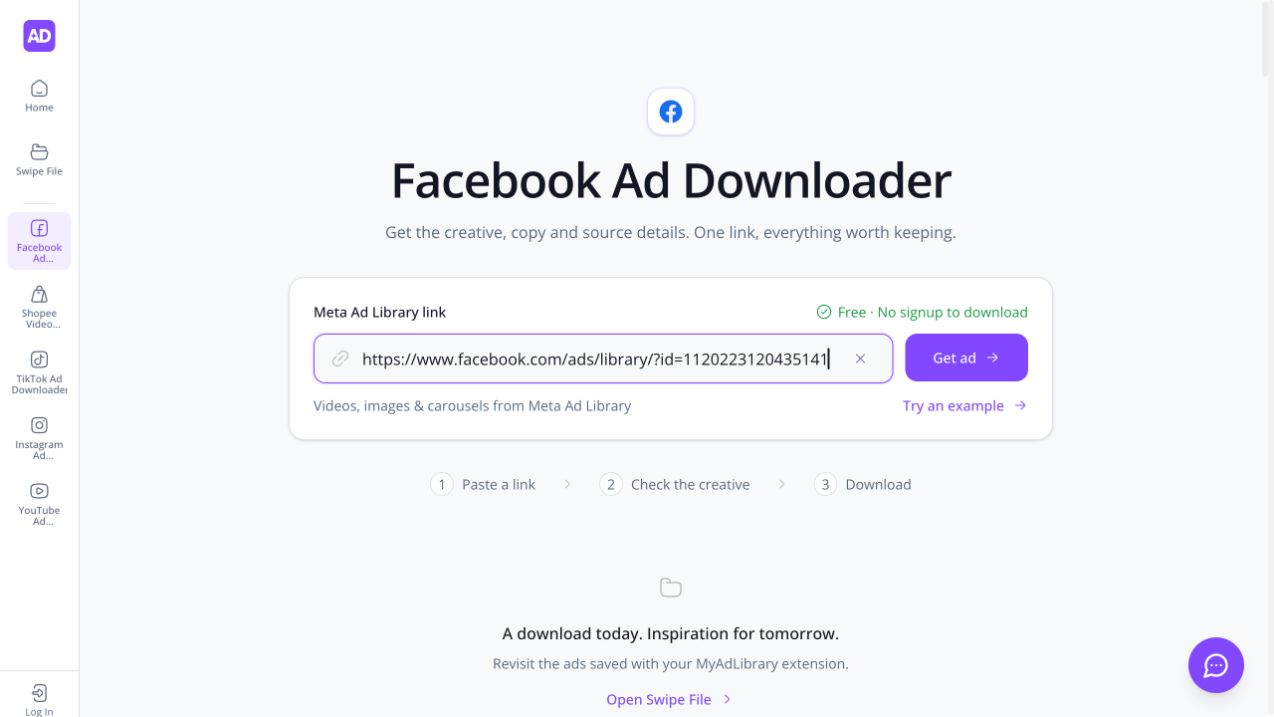
Use the individual ad address when you want one identifiable reference. Interface captured on October 23, 2026.
Distinguish three links during research: the original ad, the advertiser's profile, and the destination landing page. Each answers a different question. Keep the ad's original address as the source for this export.
The downloader's Try an example option can help you learn the interface. A result marked Example data is a demonstration result; replace its address with your own selected ad when gathering campaign references.
02 · Read the creative beside its copy
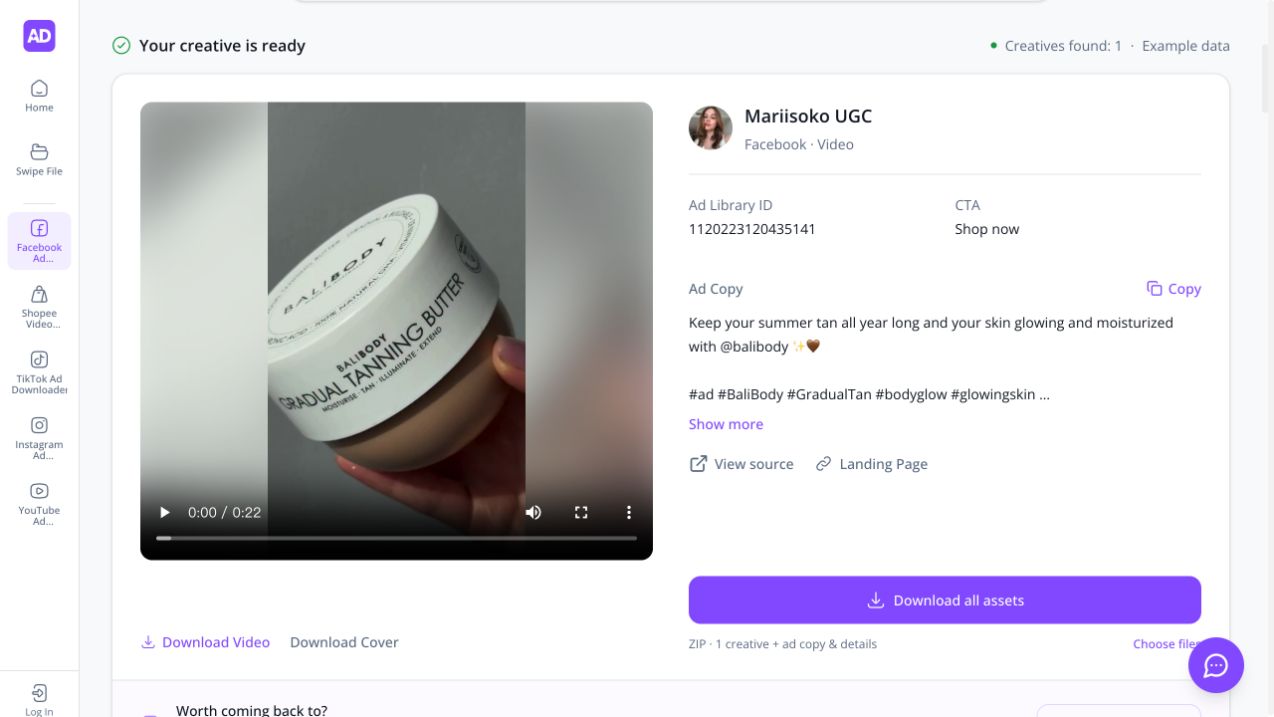
This result is marked Example data. Check the advertiser, ID, CTA, and written message together before choosing an export.
Step 2: choose assets and include the copy
Open Choose files. Select the creative assets you need and keep Include ad copy & source details checked. The option is labeled TXT + JSON in the current dialog.
For the inspected video example, the dialog listed two media assets: Creative 1 — Video and Creative 1 — Download Cover. The context checkbox was selected separately. The media selection count was two; the text and JSON files were additional context in the downloaded archive.
03 · Keep TXT + JSON context enabled
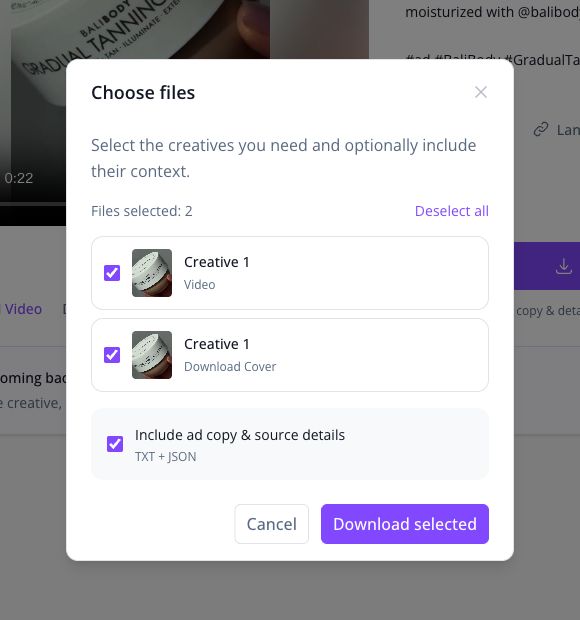
The two selected media assets are the video and cover. The checked context option adds the accompanying text and structured source files.
Choose Download selected. The broader Download all assets action is useful when you need the available set, but asset selection is the clearer route when you want to control exactly which media and context are included.
Treat a media bundle from one ad separately from a batch of independent ad URLs. If a result exposes several creatives, inspect their labels and previews before assuming how they relate. Preserve a carousel's order; keep creative variants distinct when their differences matter to your question.
Step 3: open the ZIP and identify its parts
On October 22, 2026, we used the downloader's Example data video result for Mariisoko UGC, with Ad Library ID 1120223120435141. We selected the video and cover, retained the context option, downloaded the ZIP, and inspected its file list and text contents.
| File in that archive | What it contained | How to use it |
|---|---|---|
A video file ending in .mp4 | The exported video asset | Open it for the visual and timing review. |
A cover file ending in .png | A separate still cover | Use it to identify the reference visually. |
ad-copy.txt | Advertiser name, returned copy, CTA, landing page, and source URL | Read the message beside the creative. |
ad-details.json | Source URL, Ad Library ID, author and ad fields, format, layout, and file records | Preserve structured source context. |
The example's CTA was Shop now, and the source URL ended in ?id=1120223120435141. Its JSON recorded a video format and single media layout. The missing_files array was empty in this archive.
This inspection used the supplied example's export; it did not verify the ad's current activity in Meta Ad Library or benchmark video quality. Other sources can return different media and fields.
Read TXT for the message and JSON for the record
Start with ad-copy.txt when preparing a brief. It is easier to read alongside the creative than a structured data file. In this example it kept the written message, CTA, destination, and source together.
Keep ad-details.json when you need to trace the reference. In the inspected archive, it connected the original source and Ad Library ID to the author, returned ad fields, media format, and exported filenames. It also recorded missing files.
An empty field does not establish that the original ad had no such information. Reopen the source when that detail matters to your review. The TXT file is the convenient reading copy; the JSON file preserves the structured record.
Preserve the relationship between media and copy
Keep each ad's package in its own working folder. If you rename it, include its source identifier and your capture date. Retain the original context files so your editorial notes do not replace the captured record.
For example, a research note can distinguish:
- Captured fact: the returned CTA says “Shop now.”
- Observation: a specific choice you actually watched in the video or read in the copy.
- Proposed test: a new execution for your own product and audience.
Do not label an ad “high converting” because you saved it, found it active, or saw a long running period. The exported creative and source fields in this example do not provide conversion results or ROAS.
Our Facebook and TikTok swipe file organization guide gives a fuller system for source notes, naming, and meaningful variants. Apply the same distinction between observed facts and your own interpretation.
Can you bulk download Facebook ads from one advertiser?
MyAdLibrary also supports advertiser/Page links for collecting multiple Meta Ad Library ads. Use the advertiser address shown in the source table above, rather than the URL for one selected ad.
Use the advertiser route when your question concerns several ads from one Page. Use an individual-ad link when you need one specific reference. A normal Facebook Page address identifies a different source again: public Page posts and their media are separate from the Page's Ad Library ads.
Keep each returned ad identifiable when collecting a set. Preserve its source and ID, check which items were returned, and record anything missing. The single-ad example inspected above does not establish how many ads an advertiser-level request will return, or that every historical ad can be recovered.
Troubleshoot missing text or incomplete media
| Symptom | Next step |
|---|---|
| You have an MP4 but no copy | Check whether you used the standalone video action. Use Choose files with the context option for a reference package. |
| The ZIP lacks text context | Check that Include ad copy & source details was enabled for the export. |
| The result shows no returned copy | Inspect the original ad. Preserve the source and mark the gap in your research notes. |
| A still image appears instead of the video | Distinguish Download Cover from the video asset. |
| Some media files are missing | Read the incomplete-download message. An incomplete archive can include a missing-file list; retry the missing assets. |
| The source opens a different ad | Compare the full URL and Ad Library ID; check whether a sample result was still selected. |
| No local file appears | Check the browser's download status and any save prompt. A result preview is separate from a completed file transfer. |
Keep any failure list with the package until you have resolved it. “ZIP downloaded” and “all intended media captured” are different outcomes.
FAQ
Can I download Facebook ad copy without retyping it?
Use the result's Copy control for returned text, or include context in a ZIP to keep it beside the media. Confirm that the returned text belongs to the ad you intended.
Does the ZIP include a CSV?
The archive inspected for this guide contained TXT and JSON context, with no CSV. Use the included files for this workflow; confirm a separate export before planning a CSV import.
Are text files automatically included with a standalone video?
Use the context-enabled bundle when you need text and source fields. A standalone video download and a reference package are different choices in the interface.
Is this free, and does it save to my account?
The downloader presents free access without signup for local downloading. Save to Swipe File is a separate account action that requires sign-in. Check the current account and usage limits instead of assuming unlimited storage.
04 · Sign in to save into Swipe File
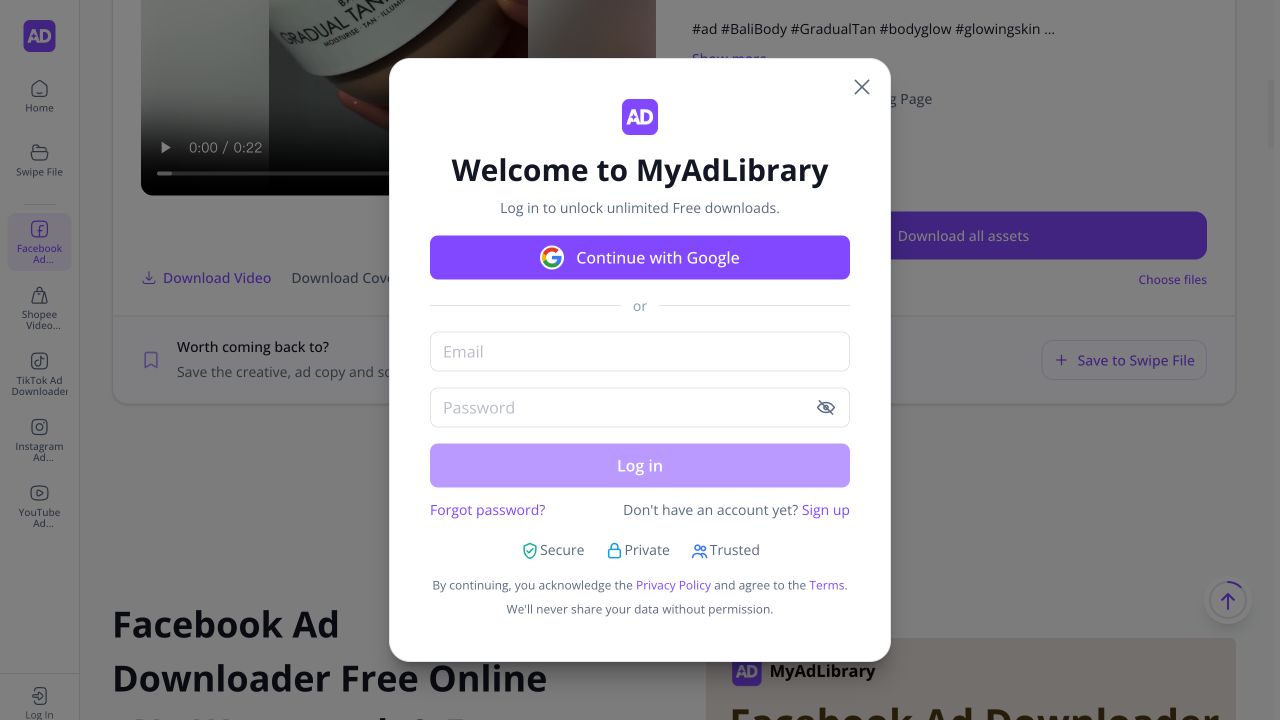
Selecting Save to Swipe File while logged out opens this sign-in dialog. Account saving is a separate action from downloading a local file.
Can I reuse another advertiser's media or copy?
Use the package to study messaging and creative decisions. Confirm permission before republishing third-party material, and make your own footage, wording, and supported claims for a new campaign.
Save a reference you can explain later
Open the Facebook Ad Downloader, retrieve one ad, and export the media with its context enabled. Keep the source, read the copy beside the creative, and add one specific observation. The package is useful when you can explain both what the ad shows and where the accompanying message came from.