

TL;DR
- To download videos from Google Ads Transparency Center, open the desired video ad and paste its creative-detail URL into YouTube Ad Downloader.
- For a collection of an advertiser's available YouTube ad creatives, use the advertiser URL. This identifies a different source from a YouTube channel.
- A detail URL contains both
/advertiser/{advertiser_id}/and/creative/{creative_id}. Preserve those IDs with the downloaded reference. - MyAdLibrary also supports regular YouTube videos, share links, Shorts, channels and playlists. A channel or playlist collection does not establish that its videos ran as ads.
- In the October 29 development walkthrough, the tested Google advertiser and creative links both returned No downloadable content found. The screenshots show that outcome; a successful Google-ad media export was not established.
- Inspect any returned media and incomplete items. Source availability, limits and permissions still apply; batch support does not promise every historical ad.
You can find a useful YouTube ad in Google's transparency database without finding the same creative in the advertiser's public channel. Searching the channel again can lead to an organic edit, a different language version or an unrelated upload.
For this task, start with the Google ad record you already identified. This guide explains how to download Google Ads Transparency Center videos through the corresponding creative or advertiser source, then keep the downloaded media connected to that evidence.
Find the advertiser and video record first
Open the official Google Ads Transparency Center. Search by the advertiser or website name, confirm the business identity, and narrow the results to the video references you need. Where platform filtering is available, select YouTube for a YouTube-specific review.
Google's ads transparency guidance explains that the repository covers ads served across Google platforms and supports advertiser or website search, including date and targeted-location filters. This makes it useful for establishing source context. A video-format record should not automatically be called a YouTube placement without checking the available platform information.
Keep your country, date and platform conditions in the research notes. They explain the subset you inspected. Do not assume every filter on Google's interface will automatically become a download parameter.
If you are still trying to identify the business behind an ad, our YouTube ad library guide covers the discovery task. This article begins once you have an advertiser or creative record to collect.
Choose a creative URL for one ad or an advertiser URL for a batch
| Source pattern | Collection scope | Best use |
|---|---|---|
https://adstransparency.google.com/advertiser/{advertiser_id}/creative/{creative_id} | One creative detail | Retrieve a particular video-ad reference |
https://adstransparency.google.com/advertiser/{advertiser_id} | One advertiser's source | Collect available YouTube ad creatives from that advertiser |
https://www.youtube.com/watch?v={video_id} | One YouTube video | Retrieve a known video directly |
https://youtu.be/{video_id} | One shared video | Use the copied share address for that video |
https://www.youtube.com/shorts/{video_id} | One Short | Retrieve a specific short-form video |
https://www.youtube.com/@{handle}/videos or https://www.youtube.com/channel/{channel_id} | A channel | Collect available channel videos |
https://www.youtube.com/playlist?list={playlist_id} | A playlist | Collect available playlist videos |
The placeholders explain the supported structures. Use real URLs copied from the relevant source. Preserve the original full address in your notes, including useful context parameters; do not replace it with a fabricated ID or strip parameters unnecessarily.
A Google advertiser ID and a YouTube channel identity are not interchangeable. The advertiser source concerns advertising records. A channel source concerns uploads, which can include content that never ran as an ad.
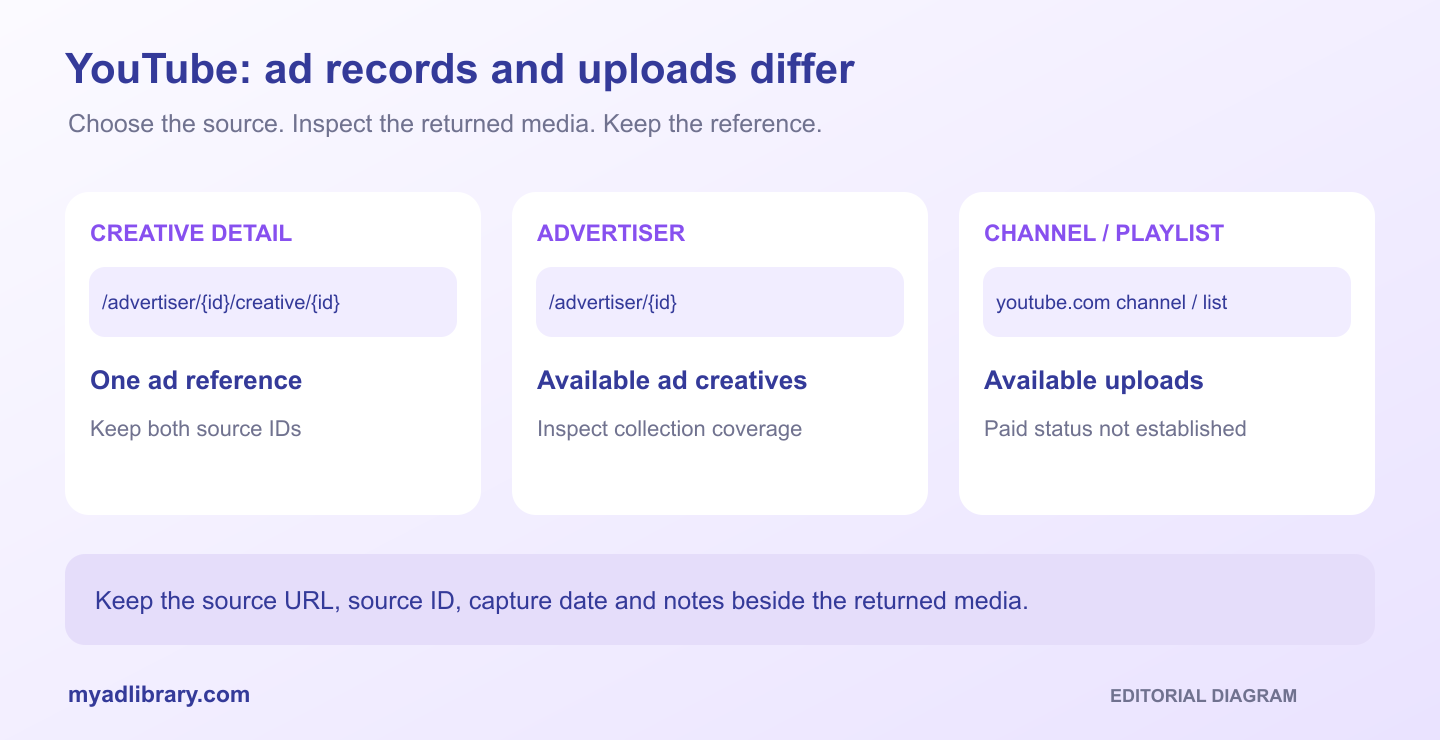
Editorial map of source scope. It does not depict a tested export or a Google interface.
Download one Google transparency video ad
1. Open and identify the creative
Open the selected video ad's detail view. Play the creative if available and note enough detail to recognize it later: the opening, product, language, offer and final CTA.
Copy the detail URL containing the advertiser and creative IDs. The product page opened by the ad's CTA is a different destination. Copying that store or signup URL will not identify the video-ad record.
Google records can expose different information depending on location. Keep the fields actually shown for your reference rather than assuming every country reveals the same targeting or reach information.
2. Submit the source to MyAdLibrary
Open the YouTube Ad Downloader, paste the actual Google transparency creative URL, and choose Find media. MyAdLibrary supports this direct ad-detail source in addition to standard YouTube links.
The browser downloader provides free entry without signup. Usage limits and source availability can still affect retrieval. A limit message should be read as a limit, rather than as evidence that repeated submissions will recover more files.
A supported source type can still return no media. In the October 29, 2026 development walkthrough, we submitted both an advertiser address and an individual creative address. Both displayed No downloadable content found. Keep the original record and use the source/retry guidance when you encounter that state; these attempts do not demonstrate a successful Google-ad download.
When a result appears, compare the media with the selected Google record. Match the language, opening and ending as well as any available identity fields. Similar thumbnails can belong to different cuts of a campaign.
3. Save the video and retain its record
Use the returned video download control and open the saved file. Confirm that it contains the creative you selected, with the expected motion and audio. A cover image is useful for indexing but cannot replace the ad video.
Keep the source URL, advertiser ID, creative ID and capture date beside the file. Include returned copy or source details where the result offers them, but do not assume every field exists for every source or that the media file embeds those details.
The ad-library record and downloaded video answer different questions: the record identifies the advertising reference, while the file lets you inspect the creative. Preserve both.
Collect YouTube ad creatives from one advertiser
Use the advertiser-level Google transparency URL when your task spans several of its ads. For example, you might want to compare the available product demonstrations, testimonial edits and promotional offers within a defined research window.
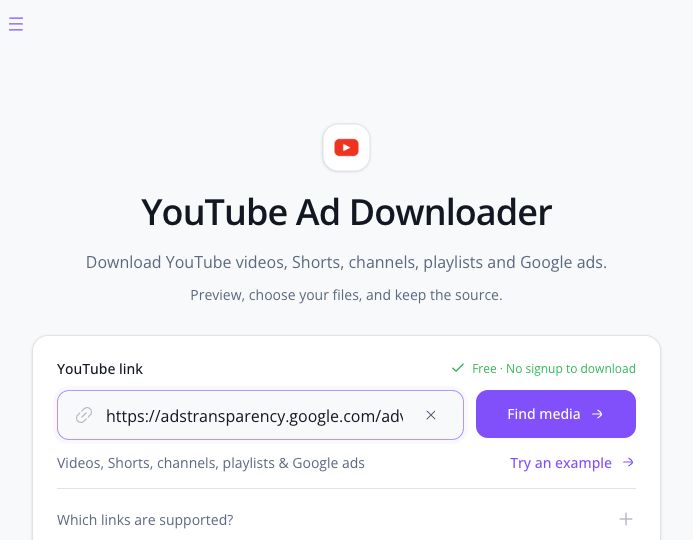
Development input capture, October 29, 2026: advertiser AR16446231045482741761 submitted on the YouTube route. Entering a supported address does not establish that downloadable media will be returned.
- Confirm the intended advertiser in Google's interface.
- Record the date, location and platform scope you inspected.
- Submit that advertiser's real transparency URL to MyAdLibrary.
- Review the returned creatives against the YouTube-ad scope you need.
- Download the available relevant media and keep a record of missing items.
Do not describe this as downloading the advertiser's complete history. Google's source coverage, current visibility, returned results and product limits can all affect the set. Similarly, do not infer that a browser filter is enforced in the downloaded collection unless the returned records support that conclusion.
Keep advertiser-level collection separate from individual-ad packaging. Several media assets can be associated with a record, while repeated records may contain similar media. Count distinct ad references and files separately. Preserve creative IDs before removing apparent duplicates.
If one important item is missing, open its individual detail and try that source separately. This helps identify whether the problem affects the broader collection or the particular creative. Record a failed retrieval as a gap rather than silently replacing it with a similar channel upload.
When a channel or playlist is the better source
Use a channel when the task concerns the publisher's available public uploads. Use a playlist when the selected collection of videos matters more than the advertiser's paid-ad records. MyAdLibrary supports both source types for batch content collection.
That can be useful for reviewing product tutorials or a brand's public video series, but the result should be labeled accordingly. A channel video is not automatically an ad, and an advertiser's paid creative may not be represented by the public upload you find.
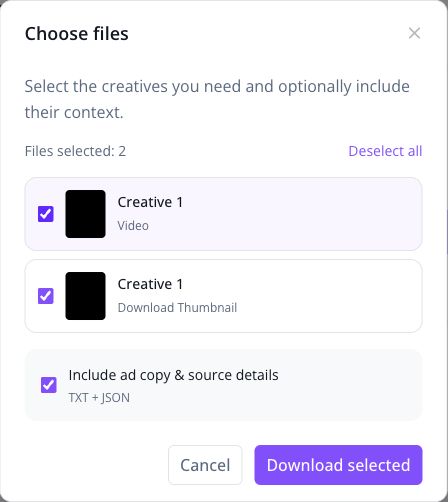
Separate public-video example: the Keyboard Cat sample demonstrates file selection for a video and thumbnail. This is not the Google advertiser or creative result, and it does not establish paid placement. The screenshot stops before download.
For your team's own uploaded videos, prefer the production originals or the owner's native YouTube Studio download workflow. YouTube also documents Google Takeout for the owner's uploaded-video archive. Those owner options are separate from a third-party advertiser-reference workflow.
For other parties' media, follow YouTube's terms and the relevant source conditions. Technical retrieval does not supply permission to reuse a competitor's footage, audio or copy.
Turn the collection into a research record
Use a small index so the video remains meaningful after it leaves the browser. This can be your own document; it is not a claim that the downloader automatically exports a particular spreadsheet format.
| Keep this field | Use it to answer |
|---|---|
| Advertiser name and ID | Which advertising identity supplied the reference? |
| Creative ID and source URL | Which exact ad record did you inspect? |
| Capture date and observed filters | What was the scope of this research session? |
| Local filename | Where is the media? |
| Language, hook, offer and CTA | What did you observe in the creative? |
| Missing items or unavailable fields | What could you not establish? |
| Proposed test | What will your own team try next? |
For example, “the offer appears after the demonstration” is an observation. “Moving our offer earlier is worth testing” is a hypothesis. Neither sentence requires inventing the advertiser's spend, conversion rate or ROAS.
Keep reusable notes in MyAdLibrary alongside a deliberate collection routine. If you save references to Swipe File, use the signed-in save workflow and confirm that action separately from downloading to your device.
Troubleshoot a missing or incorrect video
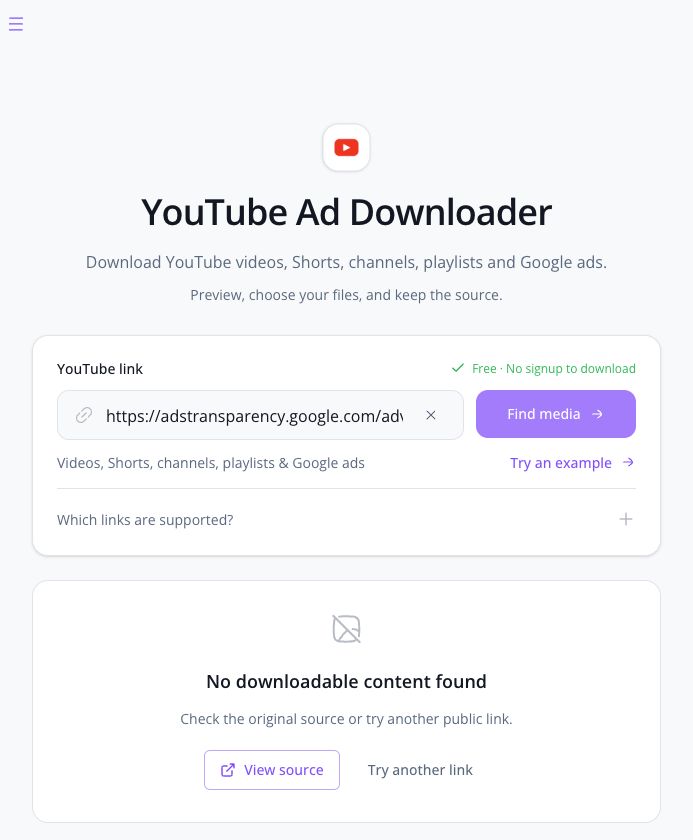
Actual development result for creative CR02029141914422345729 under advertiser AR16735076323512287233 on October 29, 2026. The ad-detail attempt returned no downloadable media. Preserve this result as an availability gap rather than substituting a successful unrelated video.
| Problem | Next step |
|---|---|
| The URL points to a store or signup page | Copy the transparency creative-detail address instead |
| You received a collection when you wanted one ad | Use the URL containing /creative/{creative_id} |
| The returned batch does not match your research scope | Review its records against your location/date/platform notes; keep only the relevant references |
| A video differs from the ad you watched | Compare the creative ID, language and edit; avoid substituting a similar upload |
| The Google record opens but media is unavailable | Keep the record as a reference and note the media gap; retry if availability changes |
| A channel batch includes non-ad videos | Treat it as a channel collection; use transparency records to establish advertising context |
| A file download fails after retrieval | Retry the affected asset and check the source rather than assuming the whole advertiser is unsupported |
FAQ
Do I need to find a separate YouTube watch URL first?
MyAdLibrary supports Google transparency creative-detail and advertiser URLs directly. A known YouTube watch or Shorts address is another supported input, rather than a required substitute for the ad-library source.
Can I bulk download YouTube ads by advertiser?
Use the advertiser's Google transparency URL to collect its available YouTube ad creatives. Inspect the returned set and any limits or missing items; do not promise complete historical coverage.
Does every video in Google Ads Transparency Center run on YouTube?
The repository covers multiple Google advertising platforms. Check the available platform information and your source filters before making a YouTube-placement claim.
Will the export reveal which ads are profitable?
The creative files and source identities do not establish profitability. Use them to study creative choices and form hypotheses, then measure your own authorized campaign tests.
Keep the ad identity with the video
To download videos from Google Ads Transparency Center, choose the creative detail for one ad or the advertiser source for a collection. Retrieve it with the YouTube Ad Downloader, inspect the returned media, and keep the source IDs with every reference you plan to study.