
TL;DR
- To download video from Shopee, copy one public product or video link, open MyAdLibrary's Shopee downloader, and select Find media.
- Check the product title and media count. Use Download this video for the selected video, or Choose files to select images, video, and a video cover.
- In Choose files, enable Include description & source (TXT) when you need the listing context beside the media.
- A product page, a Shopee Video link, and a shop link identify different content. Start with the product page when you want one listing's assets.
- You can try the downloader without an account. Saving into Swipe File requires sign-in; source availability and usage limits can affect retrieval.
Copy the link → Find media → select the video → download. For a product listing, you can also select its returned images and include the description and source in a ZIP. The browser workflow is free to try without installing an app or extension.
This guide shows how to download video from Shopee through MyAdLibrary, using a product result inspected on October 22, 2026. Start with one listing you want to study, then choose whether you need its demonstration video, a still image, or the available media set.
Choose a product link, video link, or shop link
Before pasting, decide what you are collecting. A shop can contain many products, and a public Shopee Video can be a separate reference from the media attached to a listing.
| What you need | Start with | What to inspect |
|---|---|---|
| One product's images and available demonstration video | The product detail page or its share link | Product title, images, video count, and description |
| One published Shopee Video | That video's public share link | The returned video and its source |
| Several product references from one seller | A public shop link | Returned product previews, then each selected product's full media |
The current downloader accepts public product, video, and shop links, including short share links. This guide follows those three entry points. A short address does not reveal the content type by itself: inspect the resolved result.
On desktop, open the product detail page and copy the complete address from the browser. If you are starting in the Shopee app, use the product's sharing control to copy its link. Reopen that link when you are unsure whether it identifies the product or the shop. Shopdora's link guide also illustrates the distinction between copying a product detail URL and a shop URL.
Step 1: paste the Shopee product or video link
Open the Shopee Video Downloader. Paste one product link into Shopee link, then select Find media. Wait for the result before choosing a file.
01 · Paste one public product link
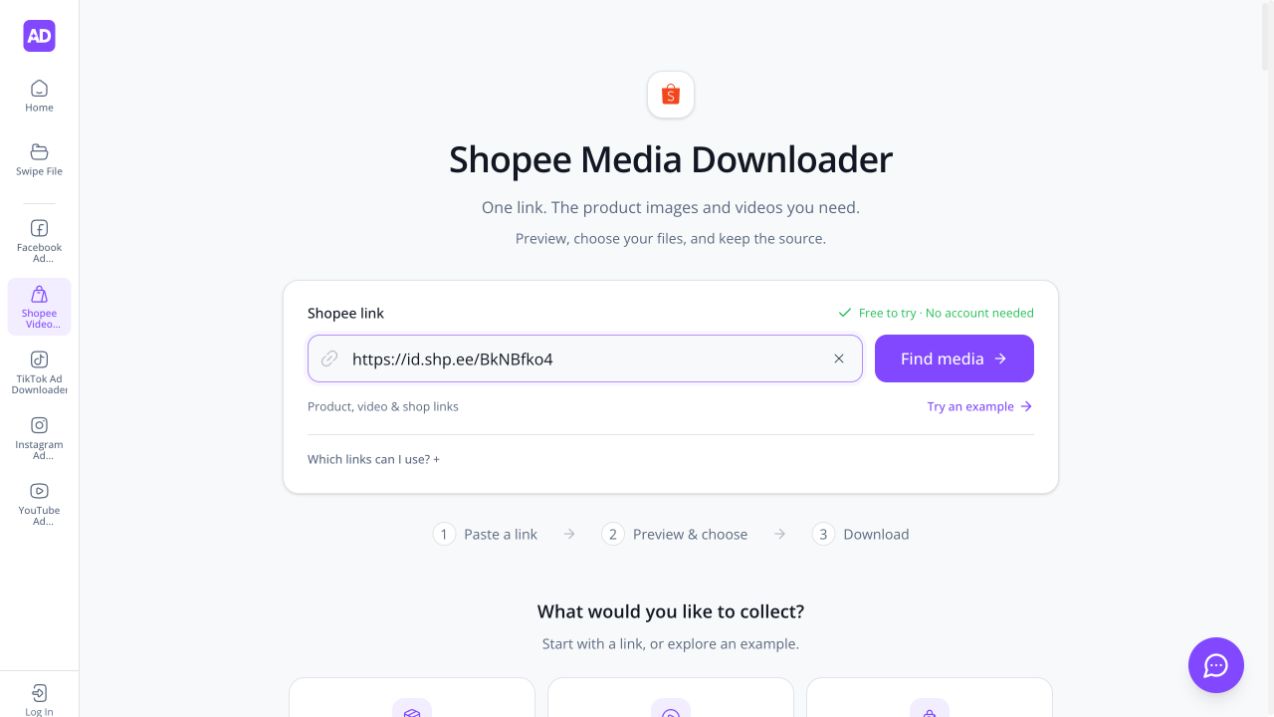
Paste the copied address into Shopee link, then select Find media. Interface captured on October 23, 2026.
The name of the tool includes “video,” but a product result can include still images too. Look for the product title, source link, and counts. These tell you whether you have found the intended listing and whether a video is available.
For example, the product short link https://id.shp.ee/BkNBfko4 returned a Niqab Butterfly listing during our inspection. The result showed 9 images · 1 video, along with the product description and a View source link. We checked the product result and file selector; that inspection did not establish a fixed output count for other listings.
Another listing may return fewer images or no video. Compare the title and preview with your chosen source before downloading.
02 · Check the title and media count
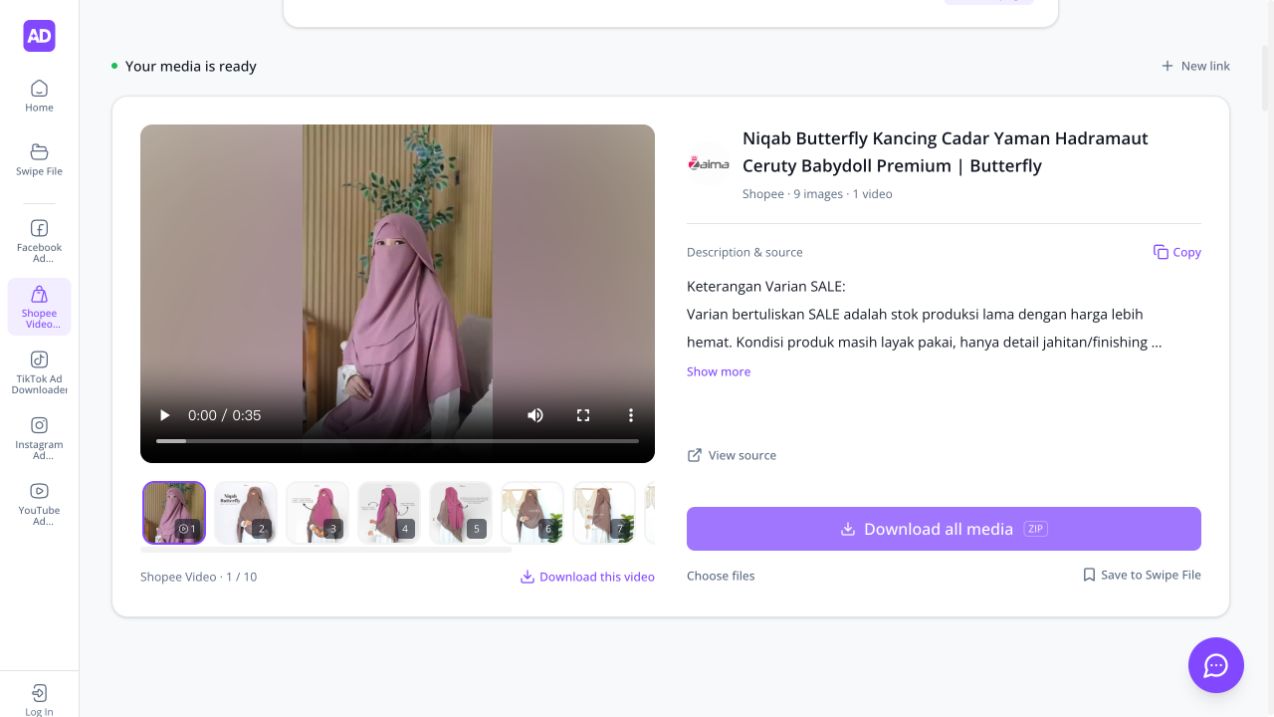
The product result shows 9 images and 1 video. The video, its cover, and the image sequence are distinct choices.
Step 2: select a video, an image, or a bundle
Use the preview thumbnails to select the media you need. Check the selected item before using its download control.
| Action | Use it when | Important distinction |
|---|---|---|
| Download this video | You need the selected product demonstration | A playable video is different from its still cover. |
| Download this image | You need one selected product image | An image cannot show timing, movement, or narration. |
| Choose files | You need a specific combination of assets | Review the selection and the optional source text. |
| Download all media | You want the available media bundle | Read any incomplete-download message before treating the ZIP as complete. |
In the inspected example, Choose files listed one MP4 video, its separate cover, and nine product images. With all of these selected, the dialog counted 11 files. This explains why the selection count can exceed the product's ten media items: the video cover is an additional selectable file.
03 · Include the source text when needed
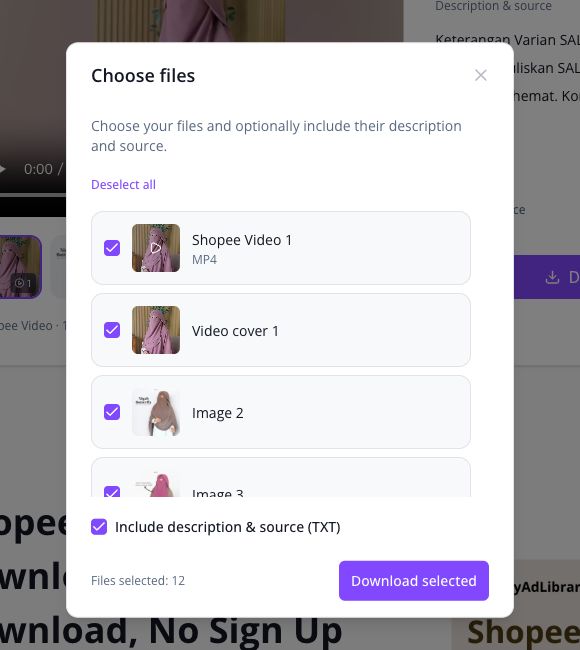
All 11 media files are selected here. Enabling the optional description and source TXT increases the displayed total to 12 files.
If you are studying a demonstration, choose the video. To compare how the listing explains product details, include its image sequence. For thumbnail research, the cover may be enough.
Step 3: include the description and source
In Choose files, select Include description & source (TXT) if you want context packaged with the media. This option was unchecked when we first opened the dialog. The screenshot above shows it enabled, increasing the displayed total from 11 to 12 files.
The text is useful for connecting the reference to the listing you inspected. It does not replace checking the original page. If the result says no description was returned, retain the source and write your own factual note instead of inventing the seller's description.
Select Download selected, then check the browser's download result. Open the saved files and confirm that the assets you wanted are present. Retrieval and downloading are separate steps: seeing a preview establishes that media was found, while opening the saved file confirms that it reached your device.
Keep the source URL, your capture date, and one observation beside the files. For example, note exactly how a demonstration shows the product's fit or movement. Keep seller statements separate from your own observations when preparing a new brief.
Can you bulk download videos and images from a Shopee shop?
A shop link is useful when you want several product references from one seller. Start with a public shop address such as https://shopee.sg/shop/{shop_id} and follow the returned product selection:
- Paste the shop link and retrieve its product previews.
- Open relevant products to inspect their full images and videos.
- Select the products and file types you need, then use Download selected.
The downloader checks selected products for media and can skip products without the requested file types. A product that lacks a video in its shop preview may still deserve a closer look: the preview filter only describes what was present in that preview.
Keep the scope of the request clear. The shop's displayed total product count is different from the number of products returned for browsing. Do not treat one shop result as a complete export of every listing or every asset in the store.
04 · Browse the returned shop products
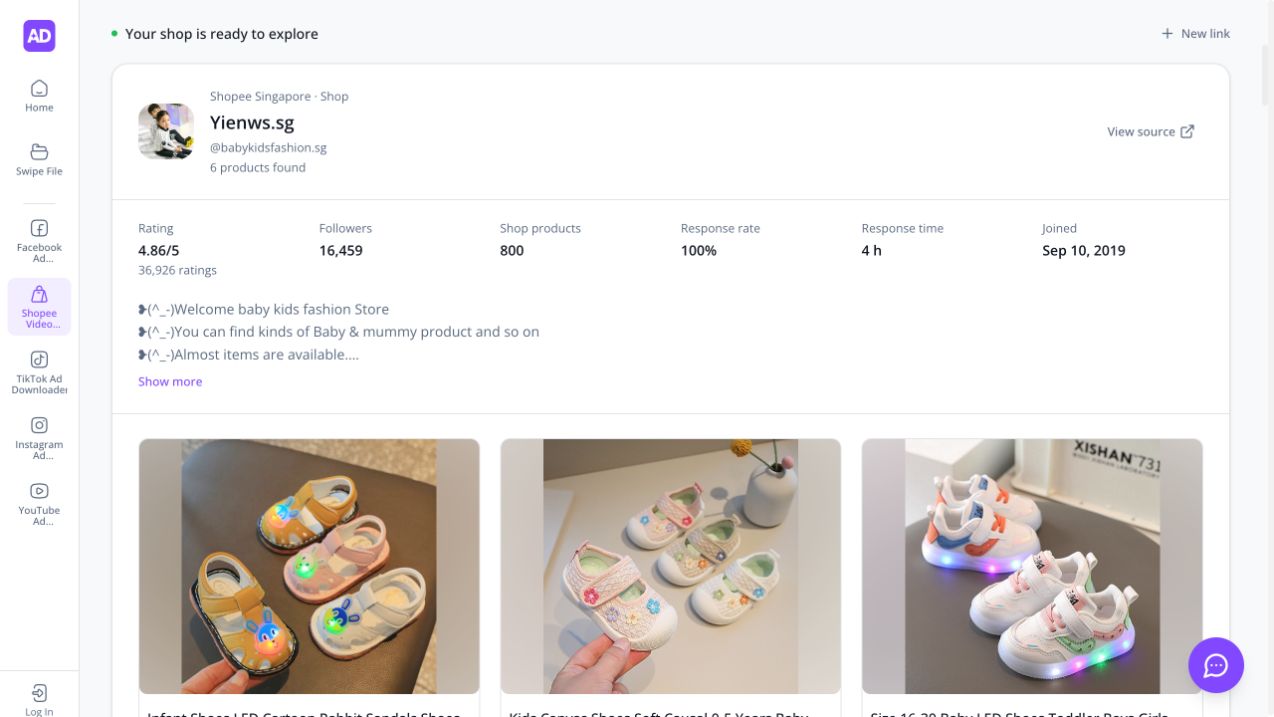
In this shop example, 6 products were returned while the shop information listed 800 products. Open a product card to inspect its full media; this is not a complete shop export.
For a single known product, pasting its product link is the more direct starting point.
Download Shopee videos on a PC, Android phone, or iPhone
The link-to-preview steps are the same starting point in a browser. On a PC, copy the product page URL from the address bar. On a phone, copy the product or video's share link, then paste it into the downloader.
After selecting the download action, check the browser's downloads list. On a phone, locate the file in the browser or file manager before expecting it in a photo gallery. Moving a saved video into Photos or another gallery depends on your device and browser.
If a share link takes you into the Shopee app again, copy the link and paste it directly into the downloader's input. Confirm the returned title and preview before saving. No app installation is needed for this website workflow.
Can you download Shopee videos without a watermark?
MyAdLibrary prefers the available original video source and can use a watermarked fallback when necessary. Check the actual returned file: source availability determines whether a clean version is available. Text, logos, or captions embedded in the footage may still be present.
The same rule applies to HD. A download does not establish a fixed 1080p resolution or upscale a low-resolution source. If dimensions matter to your review, check the saved file's properties.
Why is a Shopee video missing or not downloading?
| What happens | What to do next |
|---|---|
| The link is rejected | Paste one complete public product, video, or shop URL. Check for accidental surrounding text or a second link. |
| The result identifies the wrong item | Open View source and compare the product title with the page you intended. |
| Images appear but no video is listed | Inspect the source listing. Use the returned images or choose another listing with an available video. |
| A cover downloads instead of a video | Select the video item and its video download action. A cover is a separate still asset. |
| A shop shows only some products | Work with the returned previews; do not infer that the entire shop has been loaded. |
| A download is incomplete | Read the failure message and retry the missing items. Keep successful files while identifying the gap. |
| A usage-limit message appears | Follow the displayed sign-in or retry guidance. Avoid assuming that anonymous use has a fixed unlimited allowance. |
FAQ
Can I download Shopee product images and videos together?
Yes, when both are returned for the product. Use Choose files to select the combination, or use the available media-bundle action. A product with no returned video cannot supply one through an image download.
Do I need an app or Chrome extension?
The pasted-link workflow runs on the MyAdLibrary website. Start in your browser with one public product link. You do not need to install an extension for the workflow described here.
Where can I find the Shopee product video after downloading?
Start with your browser's download history, which shows the file name and whether the transfer completed. A downloaded video and a saved photo-library item are separate outcomes. If you downloaded a ZIP, extract it before opening its media files.
Does downloading also save the product to Swipe File?
Local downloading and account saving are separate actions. Save to Swipe File uses a signed-in account and a selected destination. Our swipe file introduction explains how a collection can support research; check the current account limits before planning storage.
Keep the product reference usable
Start with one listing in the Shopee downloader. Select the media that answers your question, include the source context, and write one specific observation. Use third-party media as a reference, and confirm permission before republishing it. The useful outcome is a traceable example you can study while creating your own work.